1. Overview
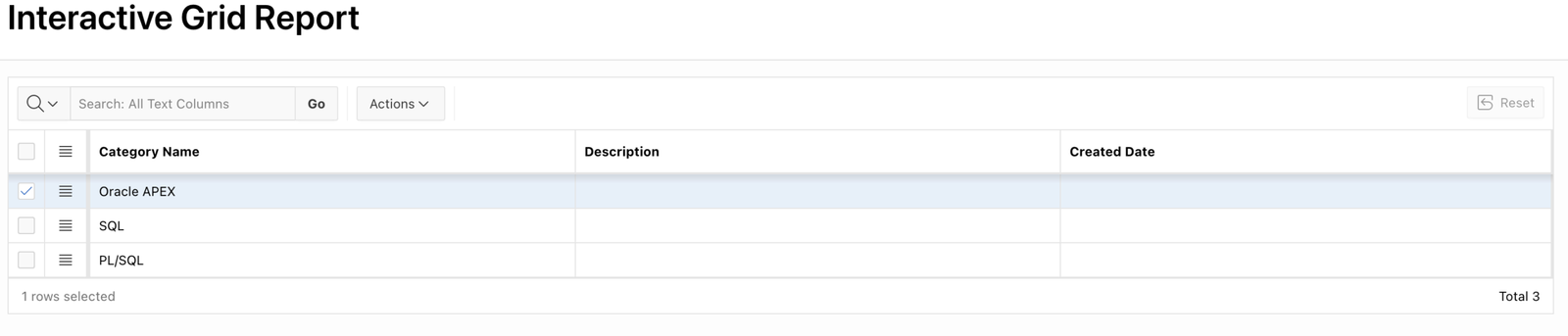
This post explains how to automatically return to the same row and page in an Interactive Grid (IG) after navigating away and coming back to the report. The solution ensures that the user’s position and selected record remain intact, enhancing the overall user experience.
This functionality is achieved using JavaScript and Oracle APEX page items.
2. Technologies and Tools Used
To implement this feature, the following tools and technologies are used:
- Oracle APEX
- JavaScript
3. Use Case
In many Oracle APEX applications, users navigate between different pages — for example, opening a detail page from a report and then returning to the report.
Without additional handling, the Interactive Grid resets to the first page, and the user loses their previously selected row or position.
This approach:
- Allows users to return to the exact same row and pagination after coming back.
- Saves time by avoiding the need to manually search for the same record again.
- Provides a seamless navigation experience across pages.
4. Implementation Steps
Follow the steps below to achieve this functionality:
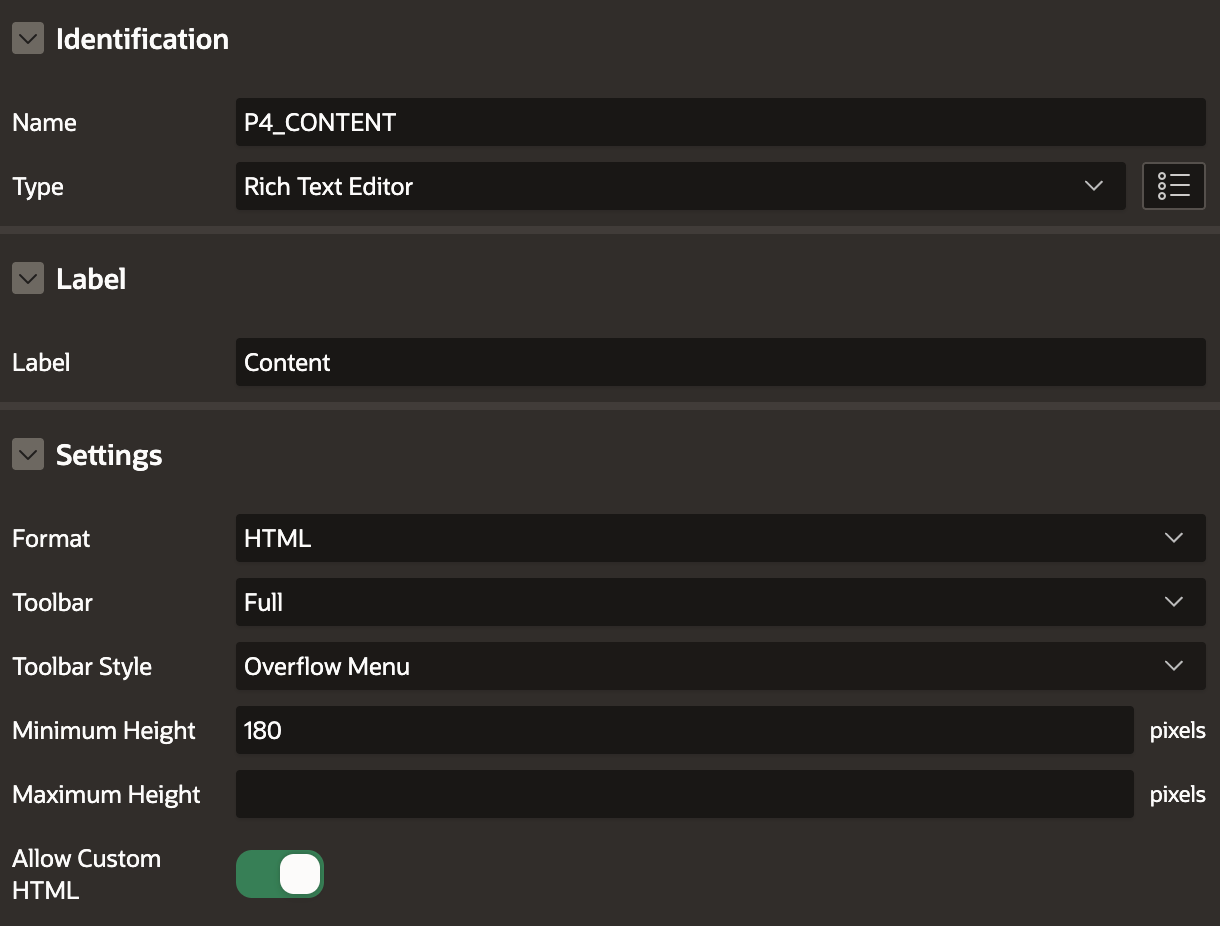
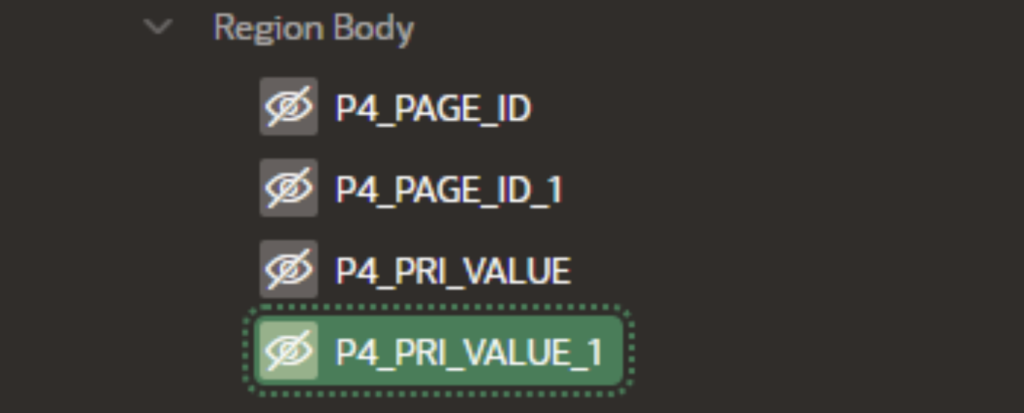
Step 1: Create four hidden page items on the Interactive Grid report page. These items will store the current page number, selected row primary key, and other necessary details.
Step 2: Create a Dynamic Action on the Interactive Grid to store the selected row’s details into the hidden page items using JavaScript.
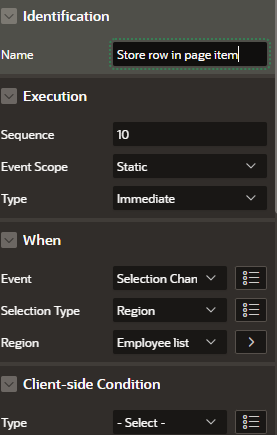
Action: Execute JavaScript
Code:
var gridID = “EMPLOYEES_IR”;

var ig$ = apex.region(gridID).widget();

var grid = ig$.interactiveGrid(“getViews”,”grid”);

var selectedRecord = grid.getSelectedRecords();

var gridData = apex.region(“EMPLOYEES_IR”).call(“getViews”).grid.view$.data(“apex-grid”);

var currentPage = Math.floor(gridData.pageOffset / gridData.pageSize) + 1;

apex.item(‘P4_PAGE_ID’).setValue(currentPage);

var i,I_SELECTED_VAL,

model = this.data.model;

for ( i = 0; i < this.data.selectedRecords.length; i++ ) {

I_SELECTED_VAL = model.getValue( this.data.selectedRecords[i], “EMPNO”);

}

apex.item(“P4_PRI_VALUE”).setValue (I_SELECTED_VAL);
Step 3: Create another Dynamic Action on Page Load to automatically highlight and navigate to the stored row when the user returns.
Code:
setTimeout(function() {

var val = $v(“P4_PRI_VALUE_1”);

apex.region(“EMPLOYEES_IR”).call(“getViews”).grid.view$.grid(‘gotoPage’,$(‘#P4_PAGE_ID_1’).val()-1);

apex.region(‘EMPLOYEES_IR’).widget().interactiveGrid(‘setSelectedRecords’, [String(val)]);

}, 1000);
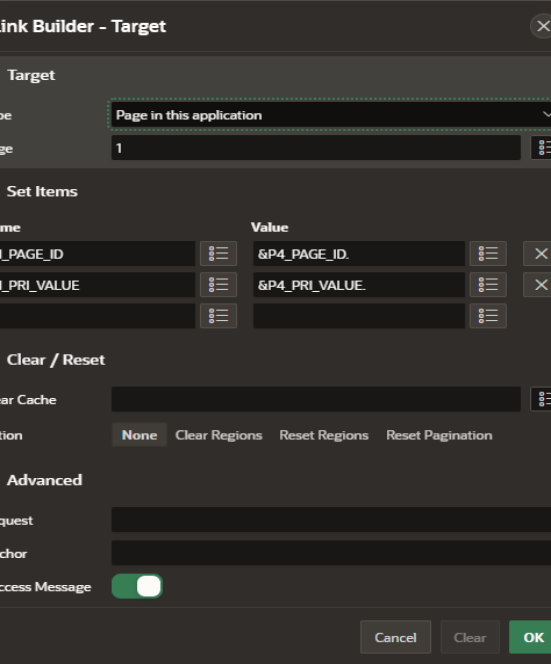
Step 4: On the detail page (or target page), create two hidden page items (e.g., P1_PAGE_ID and P1_PRI_VALUE) to receive the values passed from the previous report page.
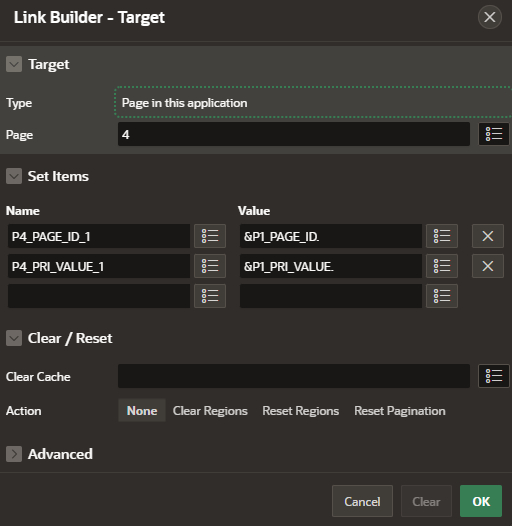
Step 5: Configure the Back button on the detail page to pass these stored values back to the report page, as shown in the reference screenshot.
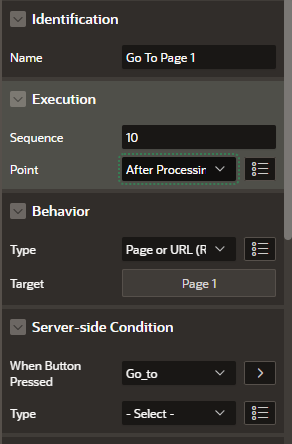
Step 6: On the report page, create a branch to handle the incoming values and restore the user’s previous position and selected row.
5. Output
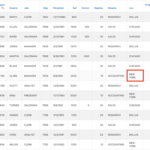
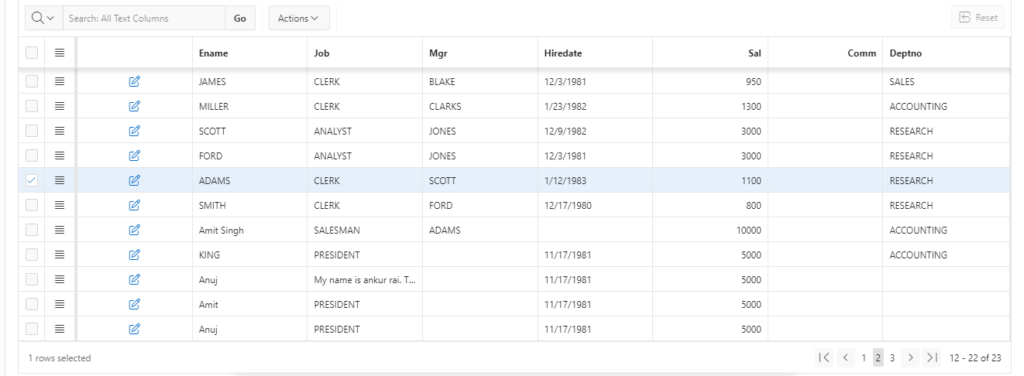
After implementing the above steps, when a user navigates back from another page, the Interactive Grid will automatically:
- Open the same pagination page.
- Highlight the previously selected row.
This ensures a smooth and consistent user experience in Oracle APEX applications
Thanks for reading! We hope this guide helped you implement Prevent Duplicate Tabs to open in Oracle APEX Using JavaScript.

Hi, I’m Ankur Rai, an Oracle APEX Developer with 6+ years of professional experience in building enterprise applications. I specialize in creating scalable and efficient solutions using Oracle APEX, PL/SQL, and SQL to solve real-world business challenges.
I am a 3X Oracle APEX Professional Certified Developer and also an Oracle ACE Associate Member, actively contributing to the Oracle community by sharing knowledge, insights, and best practices. Through my blogs, I aim to help developers learn, grow, and build better Oracle APEX applications together.