
Introduction
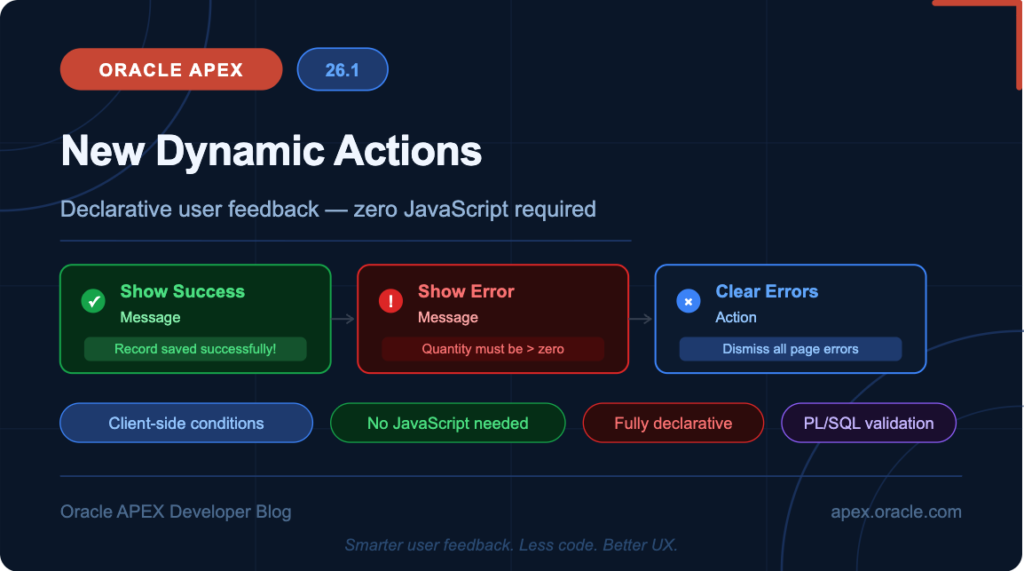
One of the most practical upgrades in Oracle APEX 26.1 is the introduction of three powerful new declarative Dynamic Actions:
- Show Success Message
- Show Error Message
- Clear Errors
These additions significantly reduce the need for custom JavaScript when handling user feedback in your APEX applications. Whether you’re validating form inputs, displaying server-side results, or clearing stale error messages, these new actions let you do it all declaratively — cleanly and efficiently.
In this post, we’ll walk through a complete hands-on example that demonstrates all three actions in action.
What’s New in APEX 26.1?
With APEX 26.1, Dynamic Actions now support:
- Declarative button and menu triggers — attach Dynamic Actions directly to buttons and menus without writing code.
- Show Success Message — displays a styled success notification to the user.
- Show Error Message — displays a styled inline error notification on the page.
- Clear Errors — programmatically clears all error messages currently displayed on the page.
These actions work seamlessly with client-side conditions, giving you fine-grained control over when each action fires.
Step-by-Step Implementation
Prerequisites
- Oracle APEX 26.1 or later
- A working APEX application
Step 1: Create a Blank Page
Start by creating a new blank page in your APEX application. This will serve as the demo canvas for our Dynamic Actions.
Step 2: Create a Static Region
Add a Static Content region to your page. This region will hold the page item and buttons used to trigger our Dynamic Actions.
Step 3: Create a Page Item
Inside the region, create a new page item:
| Property | Value |
|---|---|
| Name | PXX_QUANTITY |
| Type | Text Field (or Number Field) |
| Label | Quantity |
This item will be used to demonstrate both client-side and server-side validation.
Step 4: Create Three Buttons
Add three buttons to the Edit slot of your region:
| Button Name | Label | Action |
|---|---|---|
DA_SUBMIT | Trigger Action | Defined by Dynamic Action |
PAGE_SUBMIT | Page Submit | Submit Page |
CLEAR | Clear | Defined by Dynamic Action |
Step 5: Configure Dynamic Actions on DA_SUBMIT
Click the DA_SUBMIT button and create a Click Dynamic Action with three True Triggered Actions:
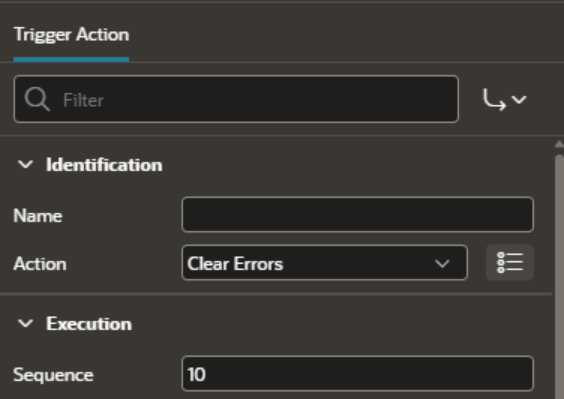
True Action 1 — Clear Errors
This action clears any existing error messages on the page before new ones are shown. It ensures the user always sees a fresh, current state.
| Property | Value |
|---|---|
| Action | Clear Errors |
True Action 2 — Show Error Message
This action displays a custom error message on the page.
| Property | Value |
|---|---|
| Action | Show Error Message |
| Settings > Message | "Quantity entered is invalid. Please check and try again." |
| Clear Errors | On (clears existing errors before showing the new one) |
| Client-Side Condition | (Optional) e.g., Item PXX_QUANTITY is less than zero |
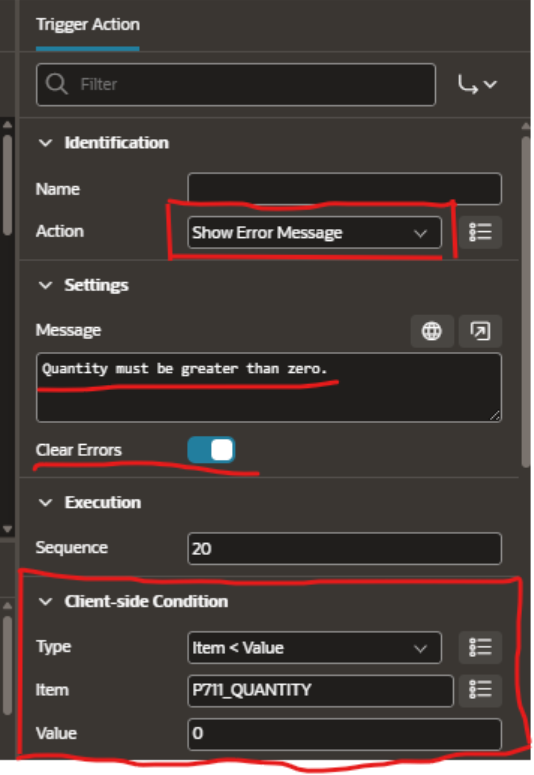
Tip: Setting the Clear Errors toggle to On within the Show Error action ensures that any previously displayed errors are wiped before the new error message appears — no leftover noise for your users.
True Action 3 — Show Success Message
This action displays a success notification to the user.
| Property | Value |
|---|---|
| Action | Show Success Message |
| Settings > Message | "Operation completed successfully!" |
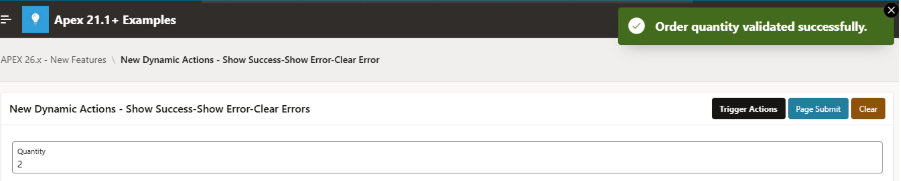
| Client-Side Condition | (Optional) e.g., Item PXX_QUANTITY is greater than or equal to zero |
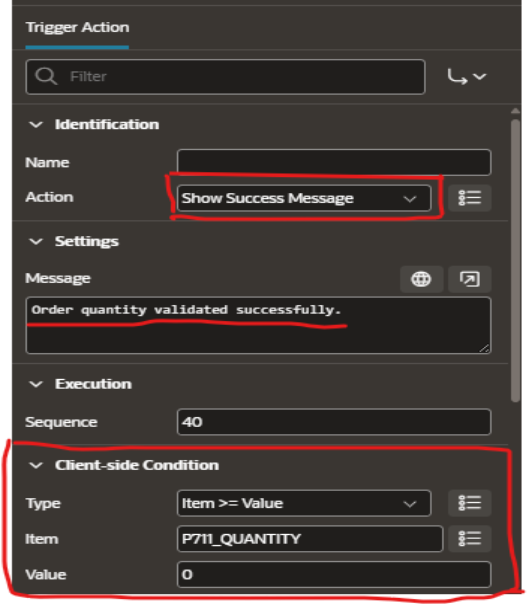
Note: Using Client-Side Conditions on the Show Error and Show Success actions allows you to display contextual feedback based on the current value of a page item — all without a single line of JavaScript.
Step 6: Configure PAGE_SUBMIT Button
Set the PAGE_SUBMIT button to Submit Page. This button will trigger the server-side validation defined in Step 8.
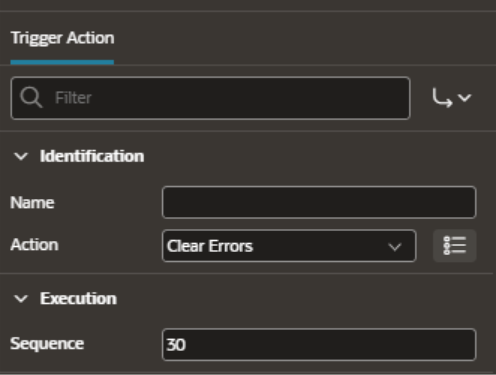
Step 7: Configure Dynamic Action on CLEAR Button
Create a Click Dynamic Action on the CLEAR button with one True Action:
| Property | Value |
|---|---|
| Action | Clear Errors |
This gives users an explicit way to dismiss all error messages on the page.
Step 8: Create a Server-Side Validation
Add a validation on PXX_QUANTITY to test the server-side error display:
| Property | Value |
|---|---|
| Name | Validate Quantity |
| Type | Function Body (Returning Error Text) |
| Language | PL/SQL |
PL/SQL Code:
BEGIN
   IF :PXX_QUANTITY < 0 THEN
      RETURN 'Quantity must be greater than zero.';
   END IF;
END;
| Property | Value |
|---|---|
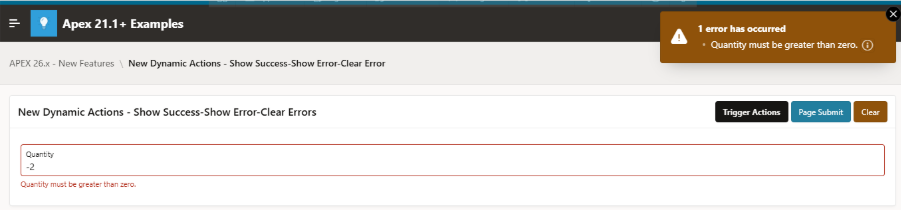
| Error > Display Location | Inline in Field and Notification |
| Error > Associated Item | PXX_QUANTITY |
| Server-Side Condition > When Button Pressed | PAGE_SUBMIT |
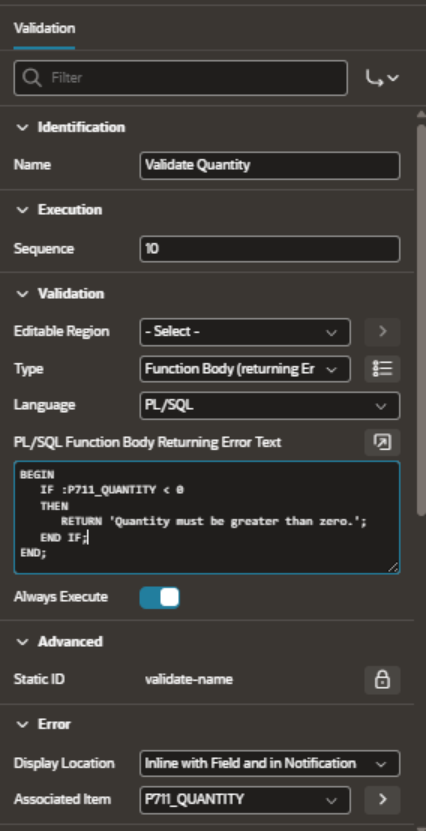
This validation only fires when the PAGE_SUBMIT button is clicked, keeping your client-side and server-side feedback nicely separated.
Step 9: Create a Page Process with Success Message
Add a simple PL/SQL process linked to the PAGE_SUBMIT button (e.g., a NULL; process for demo purposes). Set a Success Message like:
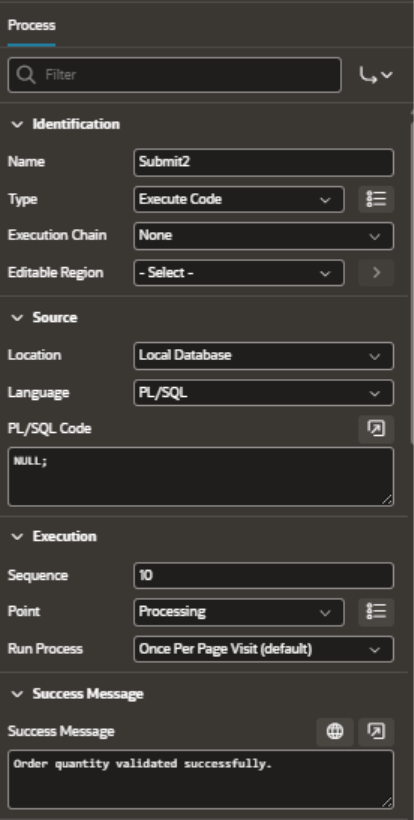
“Record saved successfully!”
This message will be displayed via APEX’s built-in success notification when the page processes without errors.
Step 10: Save and Run
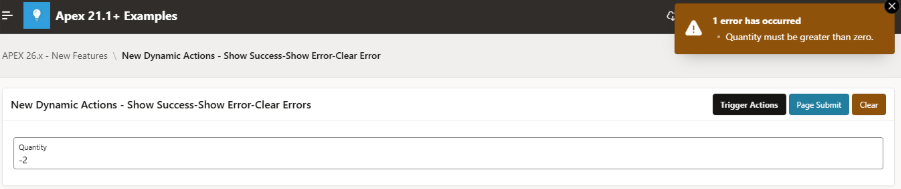
Save the page and run it. Try the following scenarios to see the Dynamic Actions in action:
| Scenario | Expected Result |
|---|---|
Enter -2 in Quantity → Click Trigger Action | Error message appears on the page |
Enter 5 in Quantity → Click Trigger Action | Success message appears |
Enter -2 in Quantity → Click Page Submit | Server-side validation error shown inline on the field |
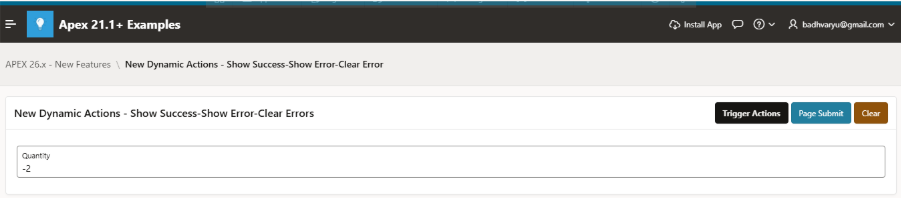
| Click Clear | All error messages are dismissed |

Why This Matters
Before APEX 26.1, achieving this kind of interactive feedback required custom JavaScript — either through apex.message.showErrors(), apex.message.clearErrors(), or apex.message.showPageSuccess(). These are still available and powerful, but they required developers to drop out of the declarative model.
With these new Dynamic Actions, you can:
- Stay 100% declarative — no JavaScript needed for standard feedback patterns.
- Use client-side conditions — show different messages based on page item values, without a server round-trip.
- Reduce errors — less custom code means less to maintain and debug.
- Onboard new developers faster — everything is visible and configurable in the APEX Page Designer.
Key Takeaways
- Show Success Message and Show Error Message are now first-class Dynamic Actions in APEX 26.1.
- The Clear Errors action can be used independently (e.g., on a Clear button) or embedded within a Show Error action to clean up before displaying new messages.
- Client-Side Conditions make these actions conditional and context-aware without any JavaScript.
- These enhancements push Oracle APEX further into the low-code sweet spot: maximum power with minimum custom code.
Conclusion
Oracle APEX 26.1’s new Dynamic Actions for user feedback are a welcome addition to the declarative toolkit. They close a gap that previously required JavaScript and make common UX patterns — showing errors, showing success messages, clearing validation feedback — fully accessible to all APEX developers regardless of their JavaScript fluency.
If you haven’t tried APEX 26.1 yet, this is a great reason to spin up an instance and explore. The combination of declarative flexibility and built-in user experience patterns continues to make Oracle APEX one of the most productive low-code platforms available.
Have questions or want to share how you’re using these new Dynamic Actions? Drop a comment below or reach out on the Oracle APEX Community forums!

A dedicated, highly conscientious and proactive Senior Oracle Developer with a strong technical background who possesses self-discipline and the ability to work with the minimum of supervision. My expertise spans in relation to the Oracle Database and it’s tool sets, say, SQL, PL/SQL, Oracle APEX, Forms, Reports and other web technologies like HTML, Javascript, jQuery and CSS. For me, each day is a challenge and an opportunity to learn new things. My aim is to share new things and knowledge to the world of APEX development and enlight the features of Oracle APEX.