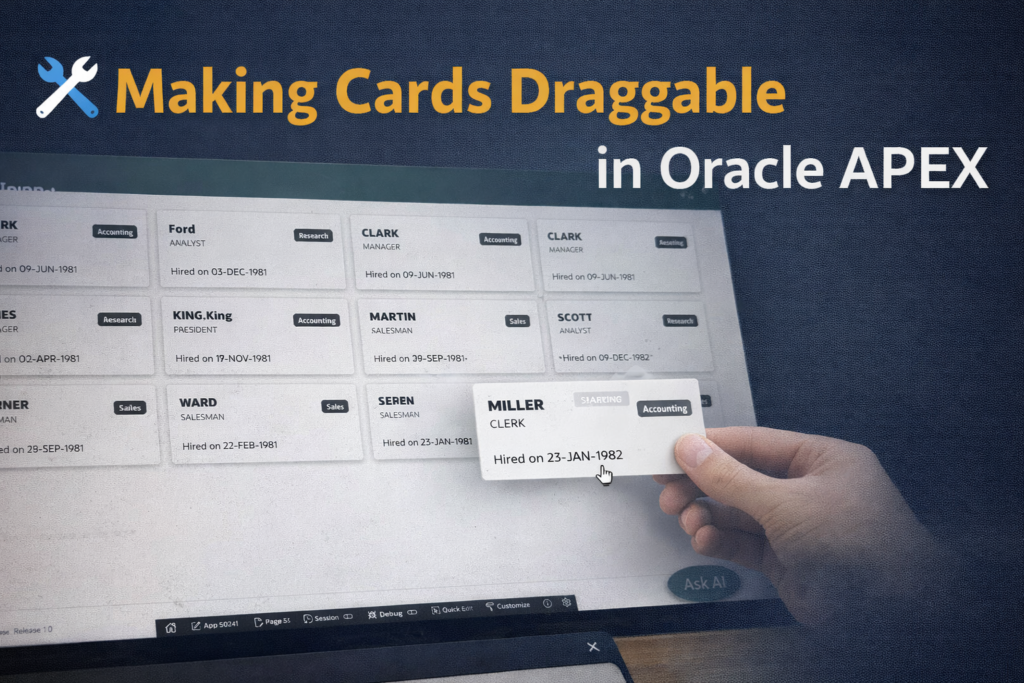

Modern applications are all about better user experience. One powerful UX feature is allowing users to reorder cards using drag & drop—just like Trello or Jira.
In this blog, I’ll show you how to implement a Draggable Card Region in Oracle APEX and persist the order in the database.
🎯 What We Are Building
- A Card Region (Card View) based on EMP table
- Users can drag & reorder cards
- Order is saved automatically in database
- Displays a success message after saving
🧱 Step 1: Create Card Region Query
Use the following SQL query for your Card Region:
select
    EMPNO,
    ENAME as CARD_TITLE,
    JOB as CARD_SUBTITLE,
    'Hired on ' || to_char(HIREDATE, 'DD-MON-YYYY') as CARD_BODY,
    case
        when DEPTNO = 10 then 'Accounting'
        when DEPTNO = 20 then 'Research'
        when DEPTNO = 30 then 'Sales'
        else 'Operations'
    end as CARD_BADGE,
    MGR,
    SAL,
    substr(ENAME, 1, 1) as CARD_INITIALS,
    DISPLAY_ORDER
from EMP
order by nvl(DISPLAY_ORDER, 999), ENAME
💡 Key Points:
- DISPLAY_ORDER → Used to maintain card position
- order by nvl(DISPLAY_ORDER, 999) → Ensures proper sorting
- CARD_* columns → Required by APEX Card UI
⚙️ Step 2: Include SortableJS Library
Add this in Page → JavaScript → File URLs:
https://cdn.jsdelivr.net/npm/sortablejs@1.15.0/Sortable.min.js👉 This library enables drag-and-drop functionality.
🧠 Step 3: Enable Drag & Drop (JavaScript)
Add this code in Execute when Page Loads:
var el = document.querySelector('#my_draggable_cards .a-CardView-items');

var sortable = Sortable.create(el, {
    animation: 150,
    ghostClass: 'u-colors-gray-1',
    onEnd: function (evt) {
        var orders = [];
        document.querySelectorAll('#my_draggable_cards .a-CardView-item').forEach(function(card) {
            var id = card.getAttribute('data-id');
            if (id) { orders.push(id); }
        });

        var lWait = apex.util.showSpinner(el);

        apex.server.process('SAVE_CARD_ORDER', {
            f01: orders
        }, {
            success: function(pData) {
                lWait.remove();
                                apex.message.showPageSuccess("Card order saved successfully!");
                setTimeout(function() {
                    apex.message.hidePageSuccess();
                }, 2000);
            },
            error: function(request, status, error) {
                lWait.remove();
                apex.message.showErrors([{
                    type:       "error",
                    location:   "page",
                    message:    "Error saving Card order: " + error,
                    unsafe:     false
                }]);
            }
        });
    }
});
🔑 Important Configuration
Make sure your Card Region Static ID is:
my_draggable_cards👉 This is required for JavaScript to target the correct region.
🔄 Step 4: Create AJAX Callback Process
Create a Process → AJAX Callback named:
SAVE_CARD_ORDERPL/SQL Code:
begin
    for i in 1 .. apex_application.g_f01.count loop
        update EMP
           set DISPLAY_ORDER = i  -- The loop index is the new position
         where EMPNO = apex_application.g_f01(i);
    end loop;
    apex_json.open_object;
    apex_json.write('status', 'success');
    apex_json.close_object;
exception
    when others then
        apex_json.open_object;
        apex_json.write('status', 'error');
        apex_json.close_object;
end;
🔍 How It Works
- User drags cards
- JavaScript captures new order (data-id)
- Sends array to APEX (f01)
- PL/SQL updates DISPLAY_ORDER
- Cards reload in saved order
✨ Final Result
✔ Drag-and-drop cards
✔ Instant save without page refresh
✔ Clean UX with success message
✔ Fully database-driven ordering
🚀 Benefits
- Improves user experience
- Works with any dataset
- Easy to reuse in multiple apps
- Minimal backend logic
🔥 Pro Tips
- Add Refresh Region after save if needed
- Use Row Locking for multi-user environments
- Add drag handle icon for better UI
- Store order per user (if required)
🎯 Conclusion
With just a small JavaScript library and an AJAX process, you can transform a static Card Region into a fully interactive, draggable UI component.
👉 This is a great way to bring modern UX patterns into Oracle APEX applications.

Hi, I’m Ankur Rai, an Oracle APEX Developer with 6+ years of professional experience in building enterprise applications. I specialize in creating scalable and efficient solutions using Oracle APEX, PL/SQL, and SQL to solve real-world business challenges.
I am a 3X Oracle APEX Professional Certified Developer and also an Oracle ACE Associate Member, actively contributing to the Oracle community by sharing knowledge, insights, and best practices. Through my blogs, I aim to help developers learn, grow, and build better Oracle APEX applications together.