In many Oracle APEX applications, Popup LOV items are used to allow users to search and select values easily. However, sometimes users need additional flexibility such as:
- Quickly clearing the selected value
- Manually entering values
- Automatically converting entered text to uppercase
In one of our recent projects, the client requested the following functionality:
✔ A Clear (X) icon button next to the Popup LOV
✔ Ability to manually enter text
✔ Automatically convert input to uppercase
In this article, we will learn how to implement this using APEX Shortcuts, JavaScript, and Popup LOV settings.
🎯 What You Will Achieve
After implementing this solution, your Popup LOV will support:
✅ Manual text entry
✅ Clear button (X icon) beside the LOV
✅ Automatic uppercase conversion
This improves user experience and data consistency.
🧰 Tools & Technologies
This implementation uses:
- Oracle APEX
- JavaScript
- APEX Shortcuts
- Popup LOV Component
⚙️ Step-by-Step Implementation
Step 1️⃣ Create an APEX Shortcut
First, create a shortcut that will generate the Clear button.
Navigate to:
Shared Components → Other Components → Shortcuts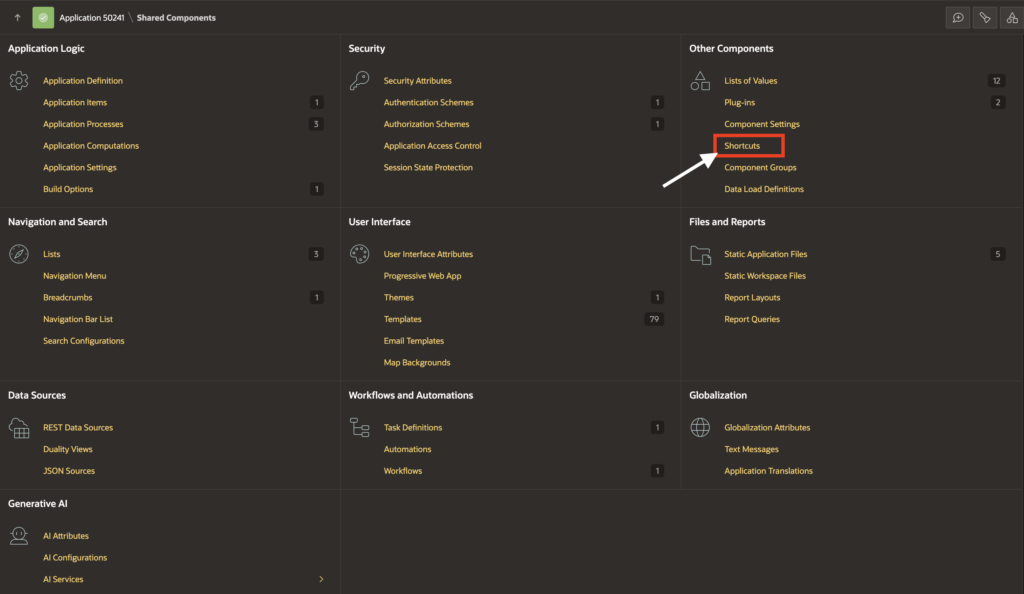
Click Create and choose Create from Scratch.
Configure the Shortcut
| Property | Value |
|---|---|
| Name | MY_CLEAR_BTN |
| Type | Function Body returning VARCHAR2 |
| Language | PL/SQL |
Shortcut Code
return q'!<button type="button"
    onclick="$s('#CURRENT_ITEM_NAME#', '');"
    class="t-Button t-Button--icon t-Button--danger t-Button--simple t-Button--iconLeft t-Button--hoverIconPush t-Button--gapRight"
    title="Clear">
    <span class="fa fa-eraser" aria-hidden="true"></span>
    <span class="t-Button-label">Clear</span>
</button>!';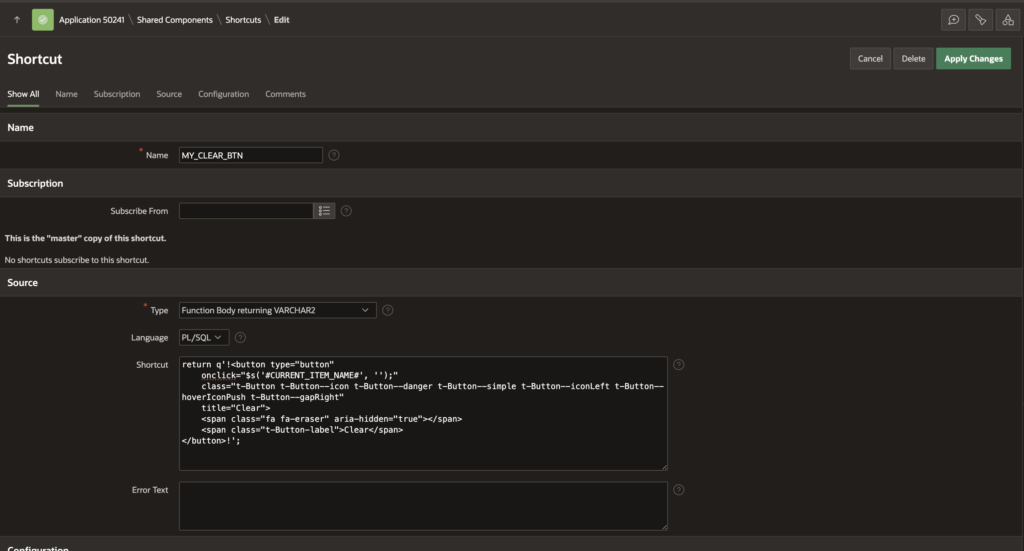
This code dynamically creates a Clear button that resets the current item value.
Step 2️⃣ Create a Popup LOV Item
Now create a Popup LOV page item.
Then configure the following settings.
Enable Manual Entry
Navigate to:
Settings → Manual Entry → ONEnable Search as You Type
Navigate to:
Settings → Search as You Type → ON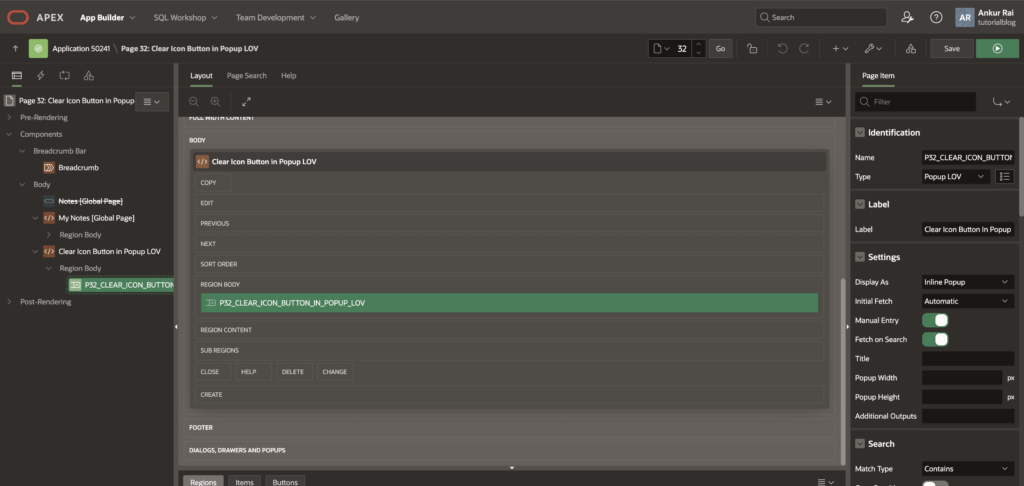
This allows users to search dynamically while typing.
Step 3️⃣ Automatically Convert Input to Uppercase
To convert entered text into uppercase automatically, add the following attribute.
Navigate to:
Advanced → Custom AttributesAdd:
oninput="this.value = this.value.toUpperCase();"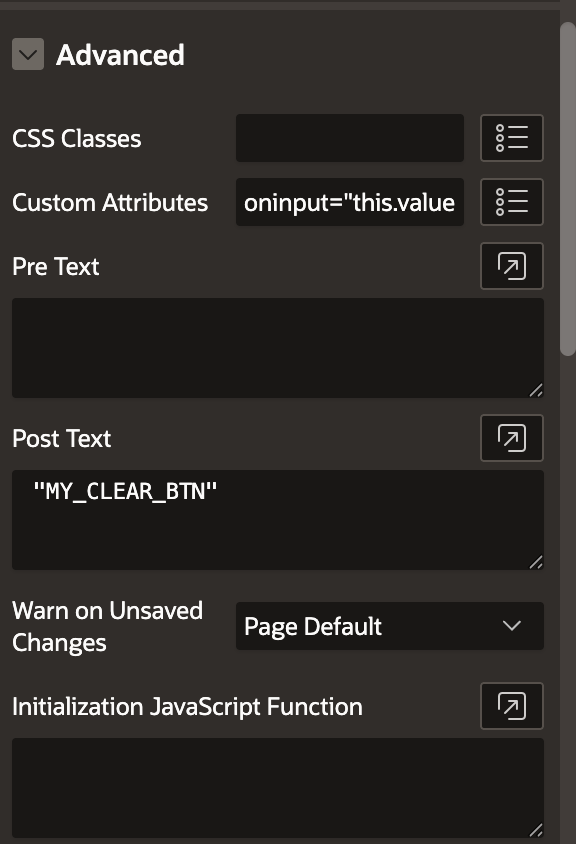
Now any text typed in the Popup LOV will automatically be converted to uppercase.
Step 4️⃣ Add the Clear Button
Now attach the shortcut to the Popup LOV.
Navigate to:
Advanced → Post TextAdd the shortcut name:
"MY_CLEAR_BTN"This will display the Clear button (X icon) next to the Popup LOV item.
Step 5️⃣ Create a Dynamic Action for Uppercase Conversion
To ensure uppercase conversion also happens when the value changes, create a Dynamic Action.
Dynamic Action Configuration
| Property | Value |
|---|---|
| Name | convertToUpper |
| Event | Change |
| Action | Execute JavaScript Code |
JavaScript Code
var element = this.triggeringElement;
var value = $v(element).toUpperCase();
$s(element, value, null, true);
This ensures that whenever the value changes, it is converted into uppercase.
🖥 Expected Result
After implementing these steps:
When user types
john smithIt automatically converts to:
JOHN SMITHWhen user clicks the Clear icon
The Popup LOV value is instantly cleared.
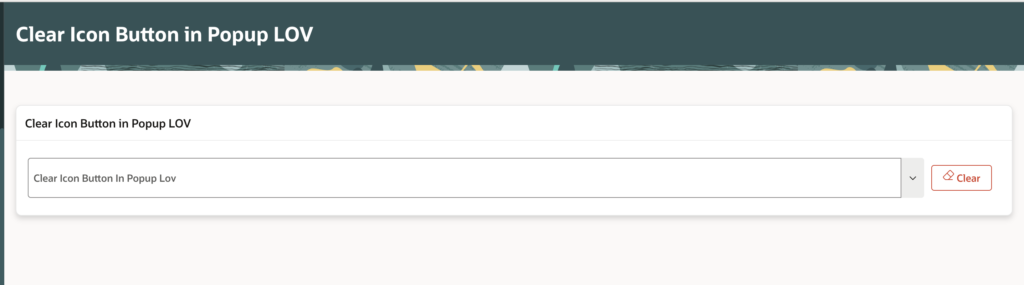
💡 Why This Approach is Useful
This approach provides several advantages:
✔ Better user experience
✔ Faster data entry
✔ Consistent uppercase data storage
✔ Reusable shortcut component
✔ Cleaner UI with a clear icon button
🚀 Pro Tip
You can reuse the APEX Shortcut for:
- Text fields
- Select lists
- Popup LOV items
- Date pickers
This makes it a reusable UI enhancement across your application.
🏁 Conclusion
Using APEX Shortcuts, JavaScript, and Popup LOV settings, you can easily enhance the functionality of APEX items by adding a Clear button and automatic uppercase conversion.
This small improvement can significantly improve data consistency and usability in enterprise APEX applications.
Love coding? Me too! Let’s keep in touch – subscribe to my website for regular chats on Oracle APEX, PL/SQL,SQL JavaScript, and CSS.