1. Introduction
In Oracle APEX applications, user experience (UX) plays a vital role in improving productivity and usability. One common requirement is to automatically place focus on the Search field of an Interactive Report after refreshing the report.
This article explains a simple and effective approach to set focus on the Search field (column search) in an Interactive Report using Dynamic Actions and JavaScript.
2. Tools and Technologies
To achieve the desired functionality, the following technologies are used:
- Oracle APEX
- Javascript
3. Business Requirement
In many enterprise applications, users frequently filter or search data after selecting parameters such as Department, Status, or Category.
The Challenge:
- After clicking the Search button and refreshing the Interactive Report,
- The cursor focus is lost
- Users must manually click on the Search icon again to continue searching.
The solution:
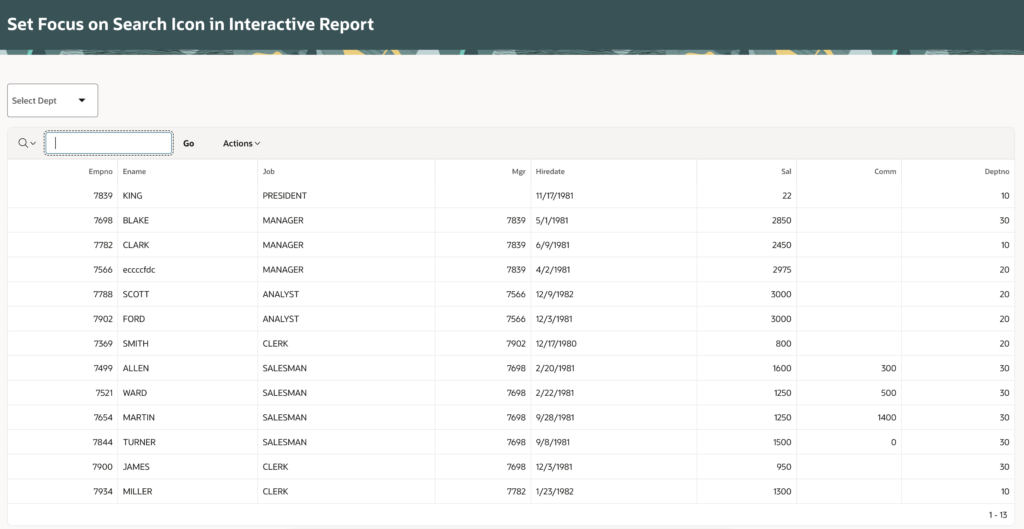
Automatically set focus on the Search icon after the report refresh so users can continue typing or filtering without extra clicks.
✔ Improves user efficiency
✔ Enhances user experience
✔ Reduces unnecessary mouse interactions
4. Implementation Steps
1️⃣ Create an Interactive Report
Create an Interactive Report based on the EMP table.
2️⃣ Create a Page Item (Select List)
Create a page item to filter employees by department.
- Item Name: PXX_DEPARTMENT
- Type: Select List
Settings:
- Page Action on Selection: None
SELECT  dname d, deptno r
FROM dept
ORDER BY 2;
➡ Move this item above the Interactive Report region.
3️⃣ Create a Dynamic action
Create a Dynamic Action on change of page item.
Dynamic Action Details
- Name: daChange_Search
- Event: Click
True Action 1:
Action: Execute Server-side Code
PL/SQL Code
null;Item to submit: PXX_DEPARTMENT
True Action 2:
Action: Refresh
Region: EMP (Interactive Report)
Fire on Initialization: Off
This refreshes the report based on the selected department.
True Action 3:
Action: Set Focus
Selection Type: jQuery Selector
jQuery Selector:
.a-IRR-button--colSearch:first-of-typeFire on Initialization: Off
✔ This automatically places the cursor on the Search icon after the report refresh.
4️⃣ Focus on page load
Create a Dynamic Action on Page load.
True Action:
Action: Set Focus
Selection Type: jQuery Selector
jQuery Selector:
.a-IRR-button--colSearch:first-of-type5️⃣ Save and Run the page.
5. Final Output
✔ Preview Image & PDF instantly when file uploaded
✔ No page refresh or submit required
✔ Improved user experience and data visibility
🏁 Conclusion
This approach provides a clean and user-friendly solution for setting focus on the Interactive Report search icon in Oracle APEX. By leveraging Dynamic Actions and jQuery selectors, you can significantly improve usability with minimal effort.
✨ Small UX improvements like this can make a big difference in enterprise applications!
🔗 Final Thoughts
If you found this blog useful:
- 👍 Like
- 🔄 Share with your APEX friends
- 💬 Comment your feedback
- 📌 Bookmark for future reference
Happy APEXing! 🚀

A dedicated, highly conscientious and proactive Senior Oracle Developer with a strong technical background who possesses self-discipline and the ability to work with the minimum of supervision. My expertise spans in relation to the Oracle Database and it’s tool sets, say, SQL, PL/SQL, Oracle APEX, Forms, Reports and other web technologies like HTML, Javascript, jQuery and CSS. For me, each day is a challenge and an opportunity to learn new things. My aim is to share new things and knowledge to the world of APEX development and enlight the features of Oracle APEX.