1. Introduction
This article explains how to Implement Dark, Light & Auto Theme Mode in Oracle APEX. The solution is implemented using a combination of Oracle APEX, SQL and PL/SQL.
2. Tools and Technologies
To achieve the desired functionality, the following technologies are used:
- SQL / PL/SQL
- Oracle APEX
3. Business Requirement
Users should be able to switch between Light Mode, Dark Mode, or Automatic Mode (based on system preference) using a simple toggle/button on the screen. The selected mode should be saved as user preference and applied automatically next time they visit the application.
This document outlines the steps required to implement this across all pages in an APEX application.
4. Implementation Steps
Step 1: Go to global page in Application
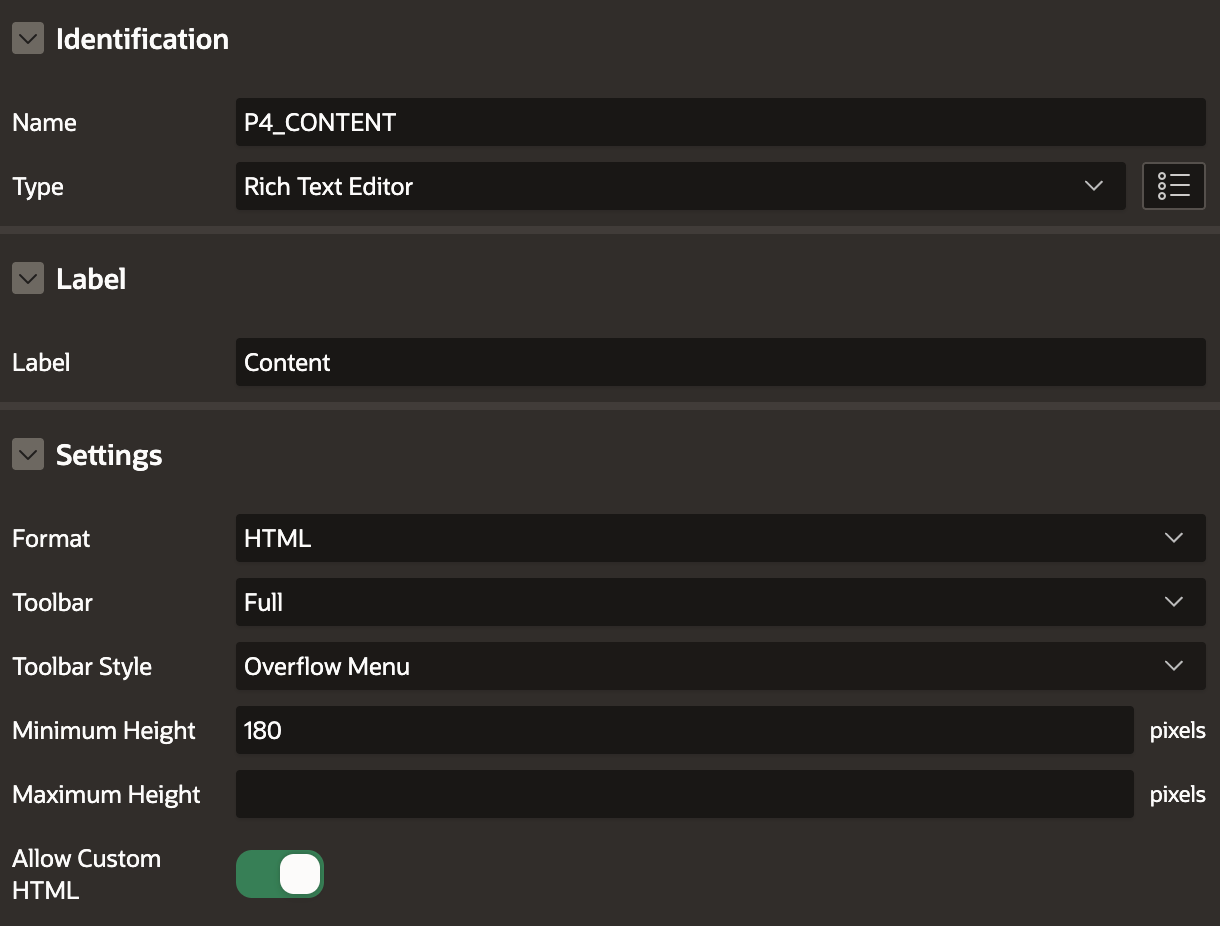
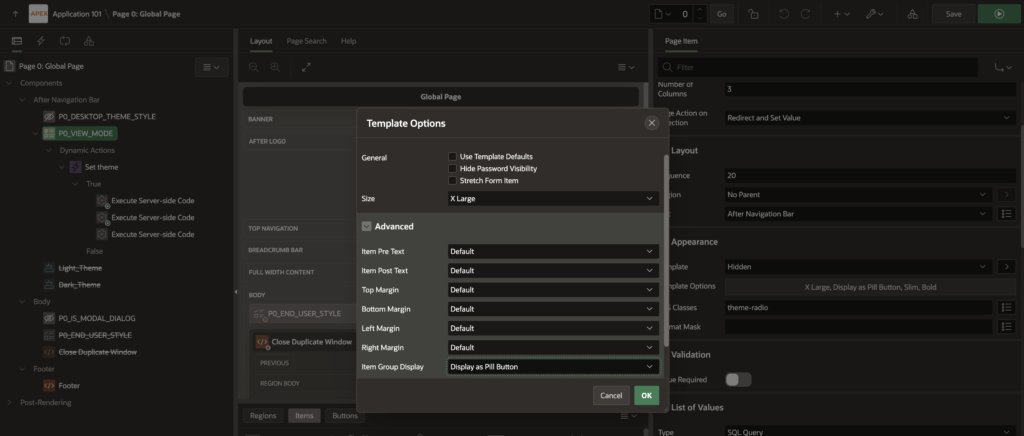
First go to global page(Zero Page) in Application and create new page item “P0_VIEW_MODE”.
- Type => Radio Group
- Number of Columns => 3
- Page Action on Selection => Redirect and Set Value
- Template => Hidden
Template Option
Item Group Display => Display as Pill Button
CSS Classes => theme-radio
List of Values
Type => SQL
SELECT
    '<span class="fa fa-moon-o"></span>' AS display_value,
    '35942668992354786' AS return_value --replace with your actual dark theme id latter on below is query to get theme ID and How to create dark theme process
FROM dual
UNION ALL
SELECT
    '<span class="fa fa-sun-o"></span>',
    '35951811971553777'  --replace with your actual dark theme id latter on below is query to get theme ID and How to create dark theme process
FROM dual
UNION ALL
SELECT
    '<span class="fa fa-font"></span>',
    '23768884671322355'  --replace with your actual dark theme id latter on below is query to get theme ID and How to create dark theme process
FROM dual;
Display Extra Value => No
Display Null Value => No
Step 2: Now Create a Dynamic Action on “P0_VIEW_MODE”
On the P0_VIEW_MODE create on change Dynamic Action.
Event => Change
Selection Type => Item
Item Name => P0_VIEW_MODE
True Action => Execute Server-side code
PL/SQL Code
null;Item to submit => P0_VIEW_MODE
Step 3: Create another Dynamic Action On Page Load
On the Global Page, create a Page Load Dynamic Action named “Set Default value when no theme”.
- Action Type: Execute Server-Side Code
- Add the PL/SQL block to set the value of P0_VIEW_MODE when there is no selected theme.
begin
select nvl(:P0_VIEW_MODE,23768884671322355) into :P0_VIEW_MODE from dual; --replace with your actual dark theme id latter on below is query to get theme
--ID and How to create dark theme proces
end;
Step 4: Application Process
Go to Shared Component and Create Application process
Process Point => On Load (Before Header Page Template Header)
- Use below PL/SQL Code to set theme.
if :P0_VIEW_MODE is not null then
    for l_theme in (select theme_number
                      from apex_application_themes
                     where application_id = :app_id
                       and is_current     = 'Yes')
    loop
        apex_util.set_current_theme_style (
            p_theme_number   => l_theme.theme_number,
            p_theme_style_id => :P0_VIEW_MODE
            );
    end loop;
end if;
Step 5: Now this is the main step to create theme and get theme ID
Now from developer toolbar go to the theme roller section and select Vita Dark them and change color as below screenshots.
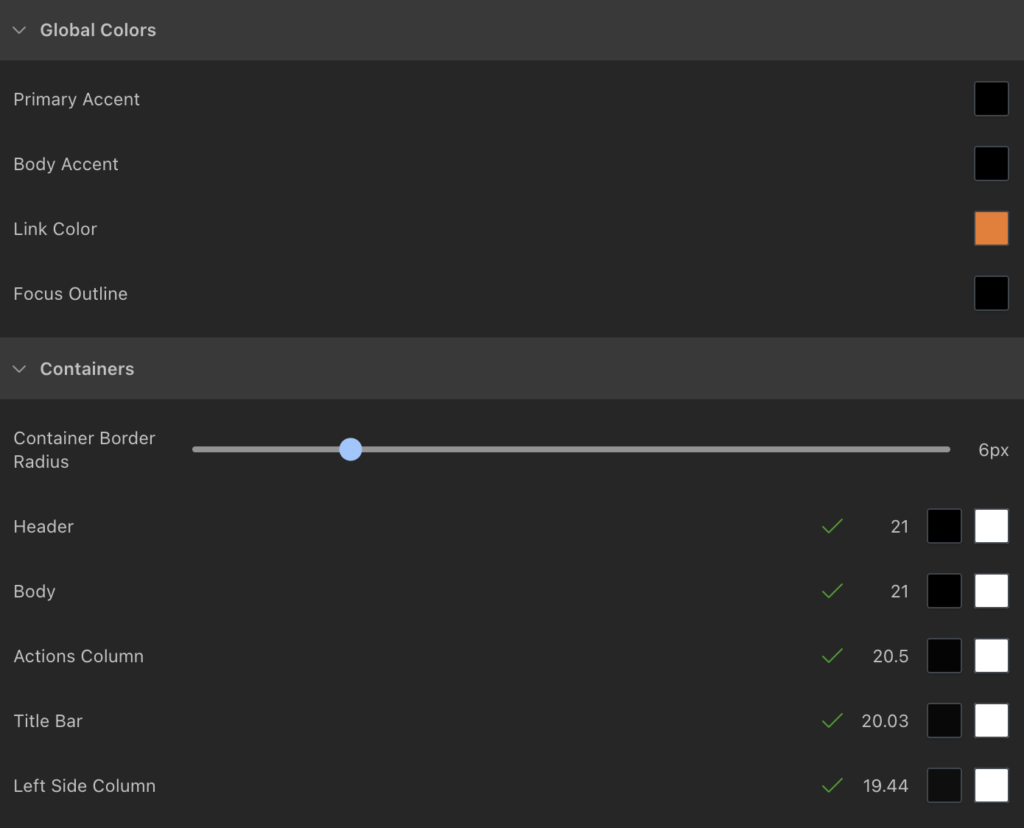
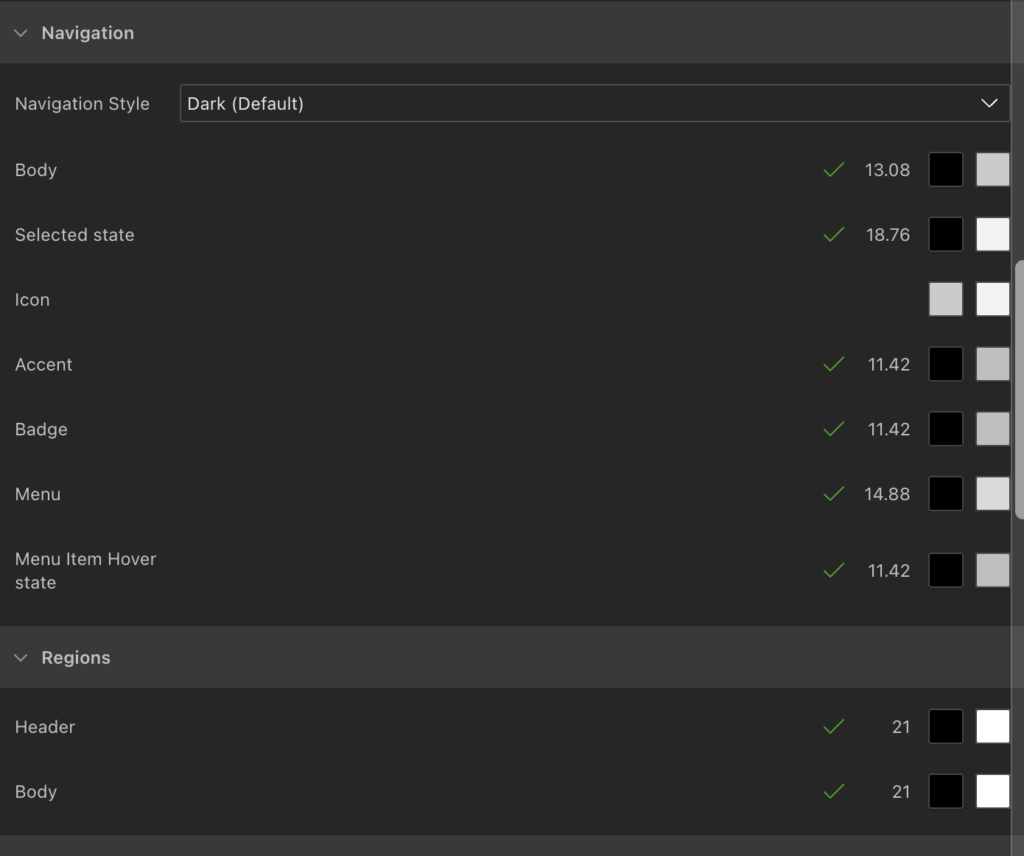
After Setting this Color do the Save changes and give name as Dark. Now your Dark theme is Ready.
Step 6: For Light theme we will directly use Red wood light theme and for Auto you can use any other theme or can create custom as how we create for dark theme.
After creating theme we need to get the theme id by below sql query and use in above Global page where it is mention to change the theme ID.
select *
from apex_application_theme_styles where APPLICATION_ID =101 -- Your Application ID
5. Output
You can see the output in this same blog at top right corner you can choose your theme.
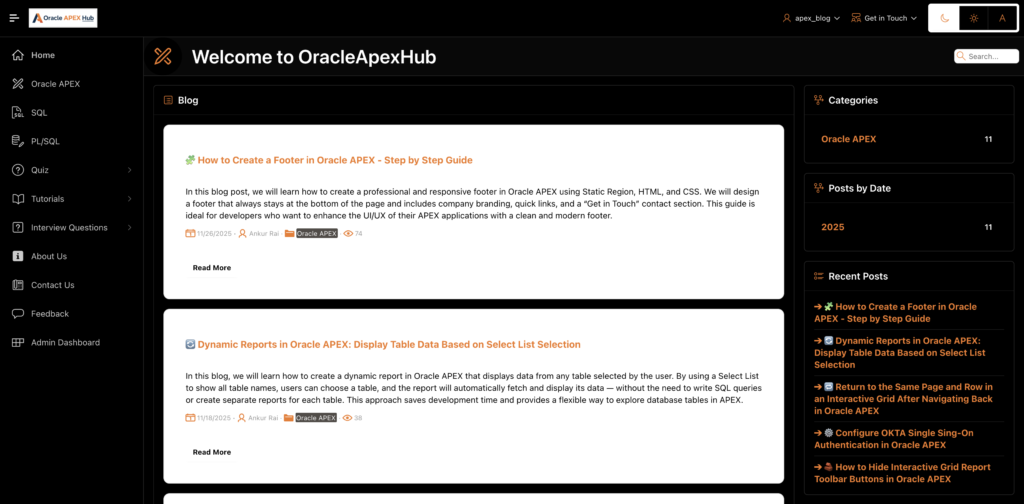
Following the above steps, Implement Dark, Light & Auto Theme Mode in Oracle APEX. This ensures a smoother and more user-friendly experience.
Thanks for reading! We hope this guide helped you Implement Dark, Light & Auto Theme Mode in Oracle APEX.

Hi, I’m Ankur Rai, an Oracle APEX Developer with 6+ years of professional experience in building enterprise applications. I specialize in creating scalable and efficient solutions using Oracle APEX, PL/SQL, and SQL to solve real-world business challenges.
I am a 3X Oracle APEX Professional Certified Developer and also an Oracle ACE Associate Member, actively contributing to the Oracle community by sharing knowledge, insights, and best practices. Through my blogs, I aim to help developers learn, grow, and build better Oracle APEX applications together.