1. Overview
This article explains how to implement custom navigation in Oracle APEX, where pressing the Tab key moves focus directly from a page item to a specific column in an Interactive Grid (IG).
Why do we need this?
In certain scenarios, a user may need to enter a mandatory value in a page item and then skip intermediate fields, jumping directly to a particular Interactive Grid column. By customizing navigation, we can streamline data entry and improve the user experience.
2. Technologies and Tools Used
The following are used to implement this functionality:
- Oracle APEX (Dynamic Actions)
- JavaScript
3. Use Case
Consider a form where users enter a value in one page item (e.g., Amount) and, upon pressing Tab, the cursor should automatically move to a specific column (e.g., Name) in the Interactive Grid, bypassing other items on the page.
4. Implementation Steps
Step 1: Create a Dynamic Action
- Go to the page item where navigation should begin.
- Create a Dynamic Action with the following settings:
- Name: Go to Column
- Event: Lose Focus
- Selection Type: Item
- Item: <your_item_name>
- True Action: Execute JavaScript Code
var view$ = apex.region("IGReport").widget().interactiveGrid("getViews").grid.view$;

var rec;

var widget = apex.region('IGReport').widget();

var grid = widget.interactiveGrid('getViews', 'grid');

var model = grid.model;

model.forEach(function(r) {

if (model.getValue(r, 'ROWID') == 'AAAqF8AAMAAAFGSAAA') {

rec = model.getValue(r, 'ROWID');

document.getElementById("NAME").focus();

var input = $(this).find('input:focus');

console.log(rec);

}

})

view$.grid( "gotoCell", rec, "NAME" );
Step 2: Add JavaScript Code
Add the following JavaScript under Execute JavaScript Code:
apex.region("IGReport").call("getActions").set("edit", true);

apex.region("IGReport").call("getActions").hide("edit");
Note: Provide static id to your Interactive grid report as “IGReport”
Step 3: Enhance on Page Load (Optional)
If needed, you can also add JavaScript on page load to manage focus behavior consistently across sessions.
5. Conclusion
With this approach, pressing Tab after entering a value in a page item will automatically move the focus to a specific column in the Interactive Grid. This method not only speeds up data entry but also improves usability in forms where multiple fields are involved.
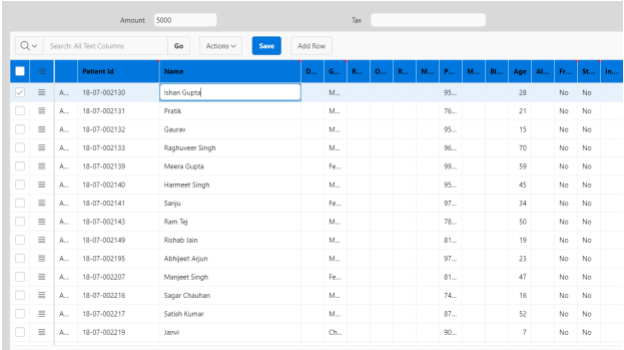
For example, as shown in the screenshot, the navigation jumps from the “Amount” page item to the “Name” column in the Interactive Grid.
Thanks for reading! We hope this guide helped you implement Custom Navigation from Page Item to Interactive Grid Column on Tab Press in Oracle APEX.

Hi, I’m Ankur Rai, an Oracle APEX Developer with 6+ years of professional experience in building enterprise applications. I specialize in creating scalable and efficient solutions using Oracle APEX, PL/SQL, and SQL to solve real-world business challenges.
I am a 3X Oracle APEX Professional Certified Developer and also an Oracle ACE Associate Member, actively contributing to the Oracle community by sharing knowledge, insights, and best practices. Through my blogs, I aim to help developers learn, grow, and build better Oracle APEX applications together.