1. Introduction
Oracle APEX Interactive Grids (IGs) are powerful components that allow developers to display, edit, and manage data efficiently. While the default toolbar offers a wide range of features — such as editing, saving, and adding rows — there are scenarios where you may want to hide specific toolbar buttons without losing other functionalities.
In this post, we’ll explore why you might want to hide toolbar buttons like Edit, Save, or Add Row, and how to implement it effectively using JavaScript.
This article explains How to Hide Interactive Grid Report Toolbar Buttons in Oracle APEX Using JavaScript when a page loads in Oracle APEX. The solution is implemented using a combination of Oracle APEX and JavaScript.
💡 Why Hide Toolbar Buttons in Interactive Grid Report?
There are several practical reasons to hide certain buttons in an Interactive Grid:
- User Permissions: You might want to allow all users to view data but only permit specific roles (like admins) to make edits. Hiding the edit or save buttons ensures a clear and secure user experience.
- Simplified UI: Removing unnecessary buttons helps keep your user interface clean and focused. A simplified toolbar reduces confusion and enhances usability.
- Conditional Display: Sometimes, you may want to show or hide buttons based on specific conditions — for instance, depending on record status, user type, or page mode (view vs. edit).
2. Tools and Technologies
To achieve the desired functionality, the following technologies are used:
- Oracle APEX
- JavaScript
4. Implementation Steps
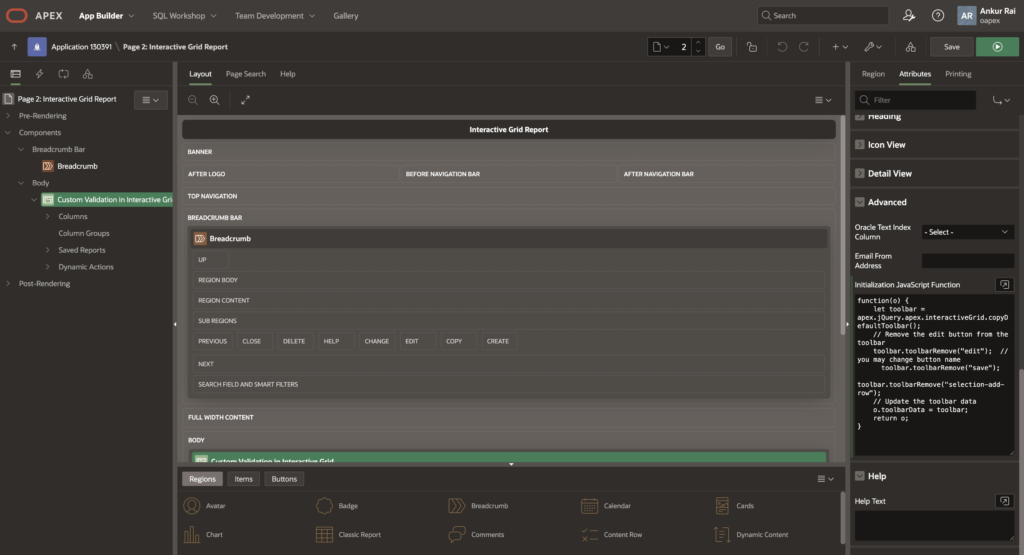
Step 1: Go to Interactive Grid Report page
To hide buttons like Edit, Save, or Add Row, you can modify the toolbar configuration using JavaScript during the grid’s initialization. This ensures the unwanted buttons are removed before the grid is rendered.
Here’s how you can do it:
function(o) {
    let toolbar = apex.jQuery.apex.interactiveGrid.copyDefaultToolbar();
    toolbar.toolbarRemove("edit");  // you may change button name
      toolbar.toolbarRemove("save");
         toolbar.toolbarRemove("selection-add-row");
    // Update the toolbar data
    o.toolbarData = toolbar;
    return o;
}
How it works:
- copyDefaultToolbar() gets the default toolbar structure.
- We filter out specific controls based on their action name.
- Then we assign the updated configuration back to config.toolbarData.
You can place this code under Attributes → Advanced → Initialization JavaScript Function in your Interactive Grid settings.
🧩 Bonus Tip: Conditional Hiding Based on User Role
You can also conditionally hide buttons using a page item or session variable. For example:
function(config) {
    var toolbarData = $.apex.interactiveGrid.copyDefaultToolbar();

    // Hide toolbar buttons for non-admin users
    if ($v("P1_USER_ROLE") !== "ADMIN") {
        toolbarData.toolbarFind("actions2").controls = toolbarData.toolbarFind("actions2").controls.filter(function(ctrl) {
            return !["edit", "save", "selection-add-row"].includes(ctrl.action);
        });
    }
    config.toolbarData = toolbarData;
    return config;
}
5. Output
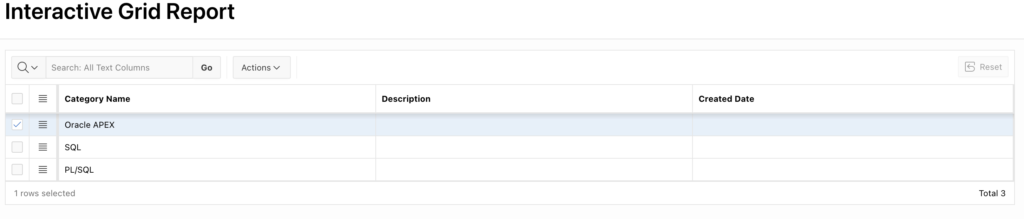
Following the above steps, Hide Interactive Grid Report Toolbar Buttons in Oracle APEX Using JavaScript automatically when the page loads. This ensures a smoother and more user-friendly experience.
Thanks for reading! We hope this guide helped you implement Hide Interactive Grid Report Toolbar Buttons in Oracle APEXUsing JavaScript.
Love coding? Me too! Let’s keep in touch – subscribe to my website for regular chats on Oracle APEX, PL/SQL,SQL JavaScript, and CSS.