

Introduction
This document explains how to implement a Lock / Unlock functionality in an Oracle APEX Interactive Grid.
A common real-world scenario is when you create an Interactive Grid for the HR department to update employee information such as:
- Name
- Address
- Job Title
- Salary
However, not all records should be editable.
For example:
- Employees who are terminated
- Employees with pending approvals
These records should not be modified accidentally. They must remain unchanged, while other records should continue to be available for updates.
To achieve this functionality, the following technologies are used:
- Oracle APEX
- JavaScript
- PL/SQL
Why Is This Required?
In my case, I had a requirement where certain rows in an Interactive Grid needed to be locked and unlocked dynamically based on business logic.
Since Interactive Grid does not provide a direct built-in row-level lock/unlock toggle with icon interaction, we needed to implement a custom solution.
Solution Implementation
Step 1 – Add JavaScript Function
Go to the page where your Interactive Grid exists and add the following function in Global Functions and Variables section.
Code:
function lockUnlock(pAjaxProcess, pId) {

apex.message.confirm(“Toggle Lock/Unlock?”, function(okPressed) {

if (okPressed) {

apex.server.process(pAjaxProcess,{x01: pId,}, {

success: function(response) {

var showButton = response.trim();

if (pAjaxProcess === “AtTaskToggleAjax”) {

var atTaskRegion = apex.region(“AtTaskDetailsStaticId”);

if (atTaskRegion) {

atTaskRegion.refresh();
}
}
},
error: function(xhr, status, error) {console.error(“Error:”, error);

apex.message.alert(“An error occurred while processing your request.”); },

dataType: “text”, } );
}
});

}
What This Does
- Displays a confirmation message before toggling
- Calls an AJAX process
- Passes the selected employee ID
- Refreshes the Interactive Grid after update
Step 2 – Create AJAX Callback Process
Next, create an AJAX Callback Process and add the following PL/SQL snippet.
Code:
ddeclare

l_confirm_flag varchar2(1);

l_show_button  varchar2(1);

lv_app number;

begin


update emp

set confirm_flag = case

when nvl(confirm_flag, ‘N’) = ‘Y’ then ‘N’

else ‘Y’

end

where empno = APEX_APPLICATION.g_x01;

commit;


exception

when others then

— Log errors for debugging

dbms_output.put_line(‘Error: ‘ || sqlerrm);

raise;

end;
What This Does
- Toggles the confirm_flag value between ‘Y’ and ‘N’
- Uses APEX_APPLICATION.g_x01 to identify the selected row
- Commits the update immediately
If confirm_flag = ‘Y’, the row is considered locked.
If confirm_flag = ‘N’, the row is unlocked.
Step 3 – Modify Interactive Grid SQL
Go to the Interactive Grid report SQL and add the following column:
, CASE WHEN confirm_flag = ‘Y’ THEN ‘fa-lock’ ELSE ‘fa-unlock’ END STATUS_ICONThis dynamically determines which icon to display:
- fa-lock → Locked
- fa-unlock → Unlocked
Step 4 – Make the Column Clickable
Go to the STATUS_ICON column and change its type to Link.
URL:
javascript:lockUnlock(‘AtTaskToggleAjax’, ‘&EMPNO.’);Link Text:
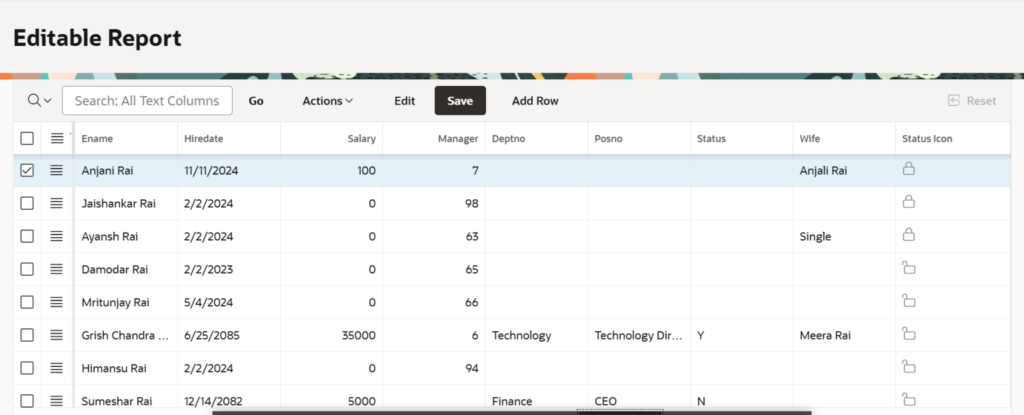
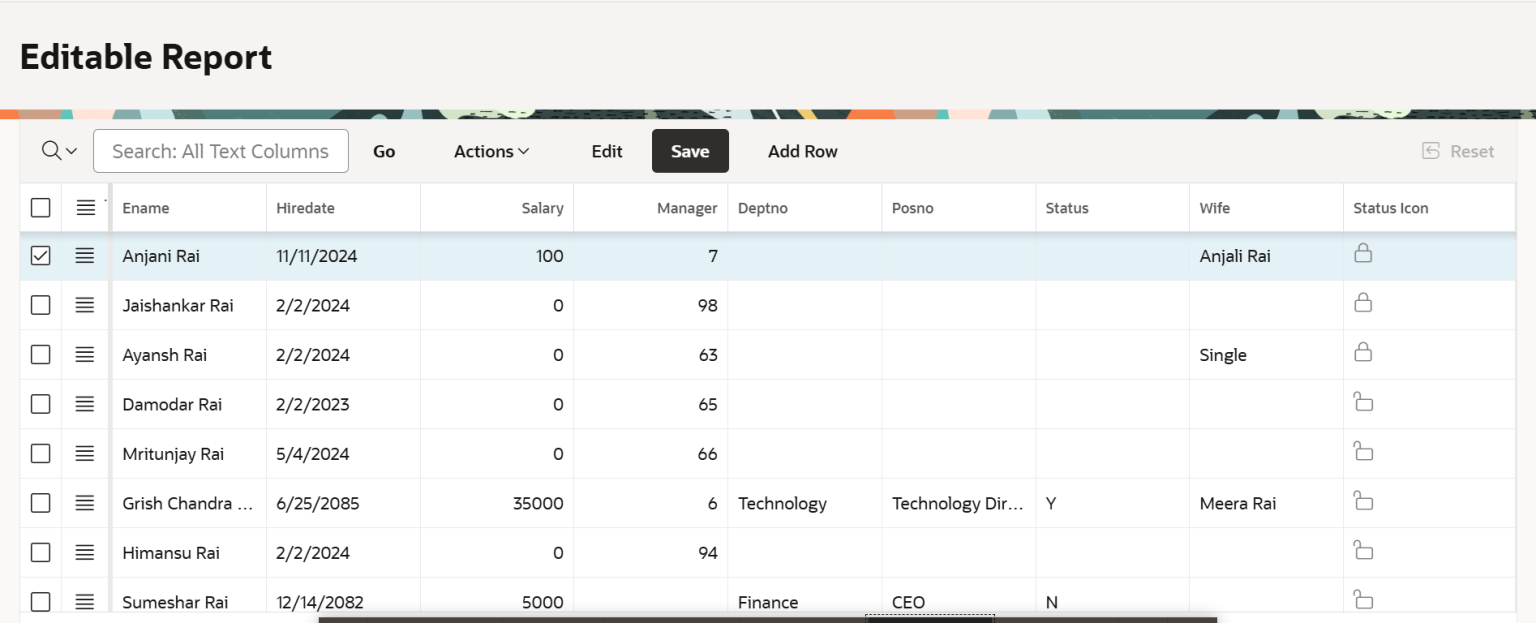
<span class=”fa &STATUS_ICON.” style=”color: grey;”></span>Now, when users click the icon:
- A confirmation popup appears
- The record gets locked or unlocked
- The grid refreshes automatically
Screen Shot
Conclusion
Implementing Interactive Grid Lock / Unlock Rows in Oracle APEX is a simple yet effective approach to control record updates and protect sensitive data.
This solution:
- Prevents accidental modifications
- Maintains data integrity
- Improves usability with clear visual indicators
- Provides dynamic control without full page reload
By combining Oracle APEX, JavaScript, and PL/SQL, you can easily implement row-level control in Interactive Grid.
Love coding? Me too! Let’s keep in touch – subscribe to my website for regular chats on Oracle APEX, PL/SQL,SQL JavaScript, and CSS.

Greate post
Thanks Alauddin