1. Introduction
This article explains How to Hide Interactive Grid Toolbar Buttons in Oracle APEX. The solution is implemented using a combination of Oracle APEX and Javascript.
2. Tools and Technologies
To achieve the desired functionality, the following technologies are used:
- Oracle APEX
- Javascript
3. Business Requirement
To improve usability, security, and data governance, the application must restrict end users from accessing unnecessary or unauthorized actions in the Oracle APEX Interactive Grid. Certain toolbar buttons (such as Add Row, Delete, Save, or Download) should be hidden based on user roles or business rules to prevent incorrect data manipulation, reduce user confusion, and ensure compliance with organizational processes.
The solution should be reusable across multiple pages and components within the Oracle APEX application while maintaining security and performance standards.
4. Implementation Steps
Step 1: Go to the Page Designer
To permanently hide one or more buttons from the Interactive Grid toolbar, you can customize the toolbar configuration during the grid’s initialization phase. This approach removes the specified buttons entirely, ensuring they are not rendered in the toolbar.
Navigate to Attribute section of Interactive grid report and paste below javascript code in Initialization JavaScript Function.
function(h) {
    let toolbar = apex.jQuery.apex.interactiveGrid.copyDefaultToolbar();
    toolbar.toolbarRemove("edit");
      toolbar.toolbarRemove("save");
         toolbar.toolbarRemove("selection-add-row");
    h.toolbarData = toolbar;
    return h;
}
Code Explanation
This JavaScript function customizes the Oracle APEX Interactive Grid toolbar during initialization to remove specific buttons before the grid is rendered.
- apex.jQuery.apex.interactiveGrid.copyDefaultToolbar():- Creates a copy of the default Interactive Grid toolbar configuration. This allows you to safely modify the toolbar without affecting the system defaults.
- toolbar.toolbarRemove(“edit”):- Removes the Edit button, preventing users from switching the grid into edit mode.
- toolbar.toolbarRemove(“save”):- Removes the Save button, ensuring users cannot commit changes even if editing is enabled elsewhere.
- toolbar.toolbarRemove(“selection-add-row”):- Removes the Add Row button, restricting users from inserting new records.
- o.toolbarData = toolbar:- Applies the modified toolbar configuration to the Interactive Grid.
- return o:- Returns the updated configuration object so Oracle APEX can render the grid with the customized toolbar.
Step 3: Save and Run the page
5. Output
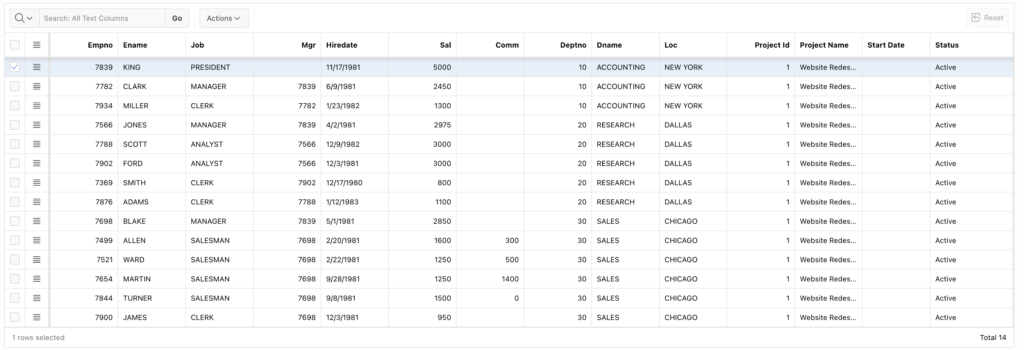
Following the above steps, you can Hide Interactive Grid Toolbar Buttons in Oracle APEX. This ensures a smoother and more user-friendly experience.
Thanks for reading! We hope this guide helped you How to Hide Interactive Grid Toolbar Buttons in Oracle APEX.
Love coding? Me too! Let’s keep in touch – subscribe to my website for regular chats on Oracle APEX, PL/SQL,SQL JavaScript, and CSS.