1. Introduction
This article explains how to setup OKTA Single Sing-On Authentication in Oracle APEX. The solution is implemented using a combination of OKTA, SQL/PL/SQL and Oracle APEX.
Okta Single Sign-On (SSO) is a cloud-based identity management solution that enables users to access multiple applications and services using a single set of login credentials. It offers a centralized platform for managing authentication and access control, streamlining the user experience while improving overall security.
2. Tools and Technologies
To achieve the desired functionality, the following technologies are used:
- SQL / PL/SQL
- Oracle APEX
- OKTA
3. Business Requirement
In many organization manages multiple internal web applications, including an Oracle APEX-based employee portal used by HR, Finance, and Operations teams. Currently, users must maintain separate login credentials for each application, leading to password fatigue, increased helpdesk requests for password resets, and potential security risks.
To streamline access management and improve security, the organization requires a centralized authentication mechanism that allows employees to log in once using their corporate credentials and seamlessly access all authorized applications, including the Oracle APEX portal.
This document outlines the steps required to implement this across all APEX application.
4. Implementation Steps
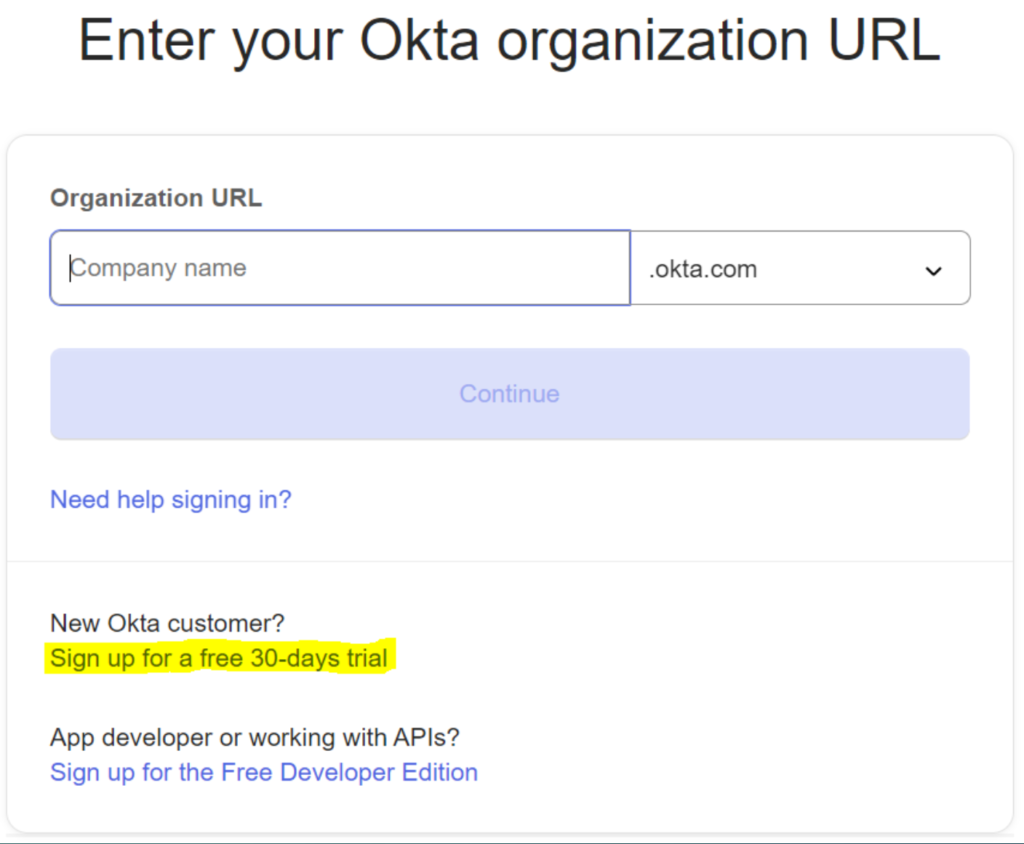
Step 1: Sign up for an Okta account (it’s not free, but a 30-day trial is available).
Click “Sign up for a free 30-day trial.”
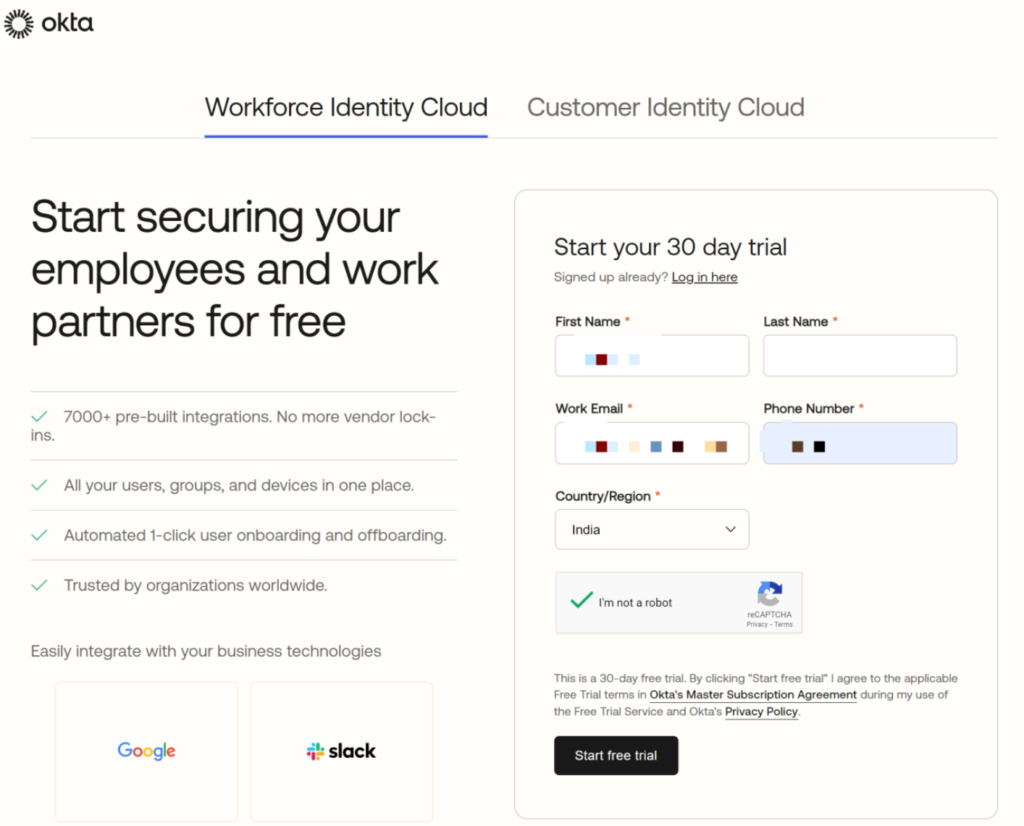
Step 2: Complete the registration form with the required details.
Step 3: Open your email and click the “Activate your Okta Account” button.
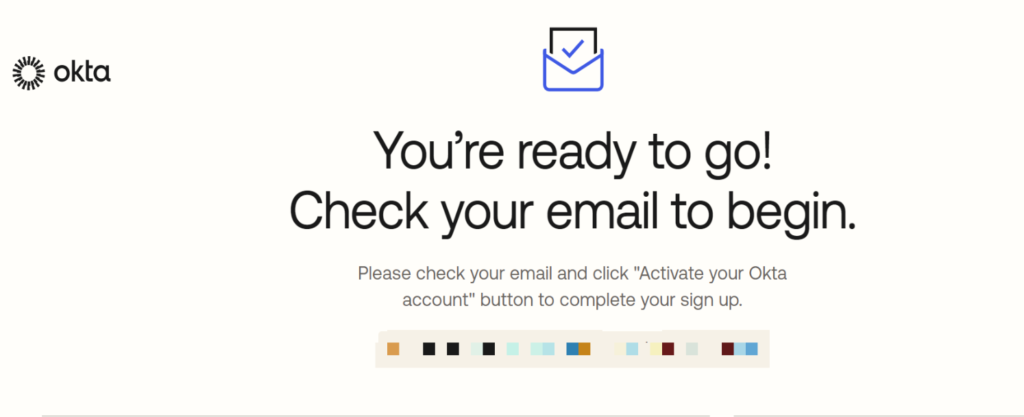
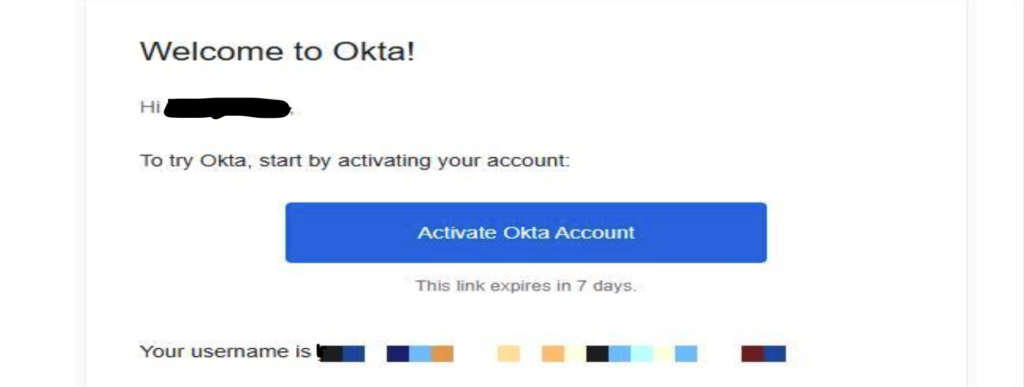
Step 4: Wait for the confirmation email, then activate your account by creating a new password. You can choose to set up MFA later.
In the same Dynamic Action, add another True Action of type Execute JavaScript Code.
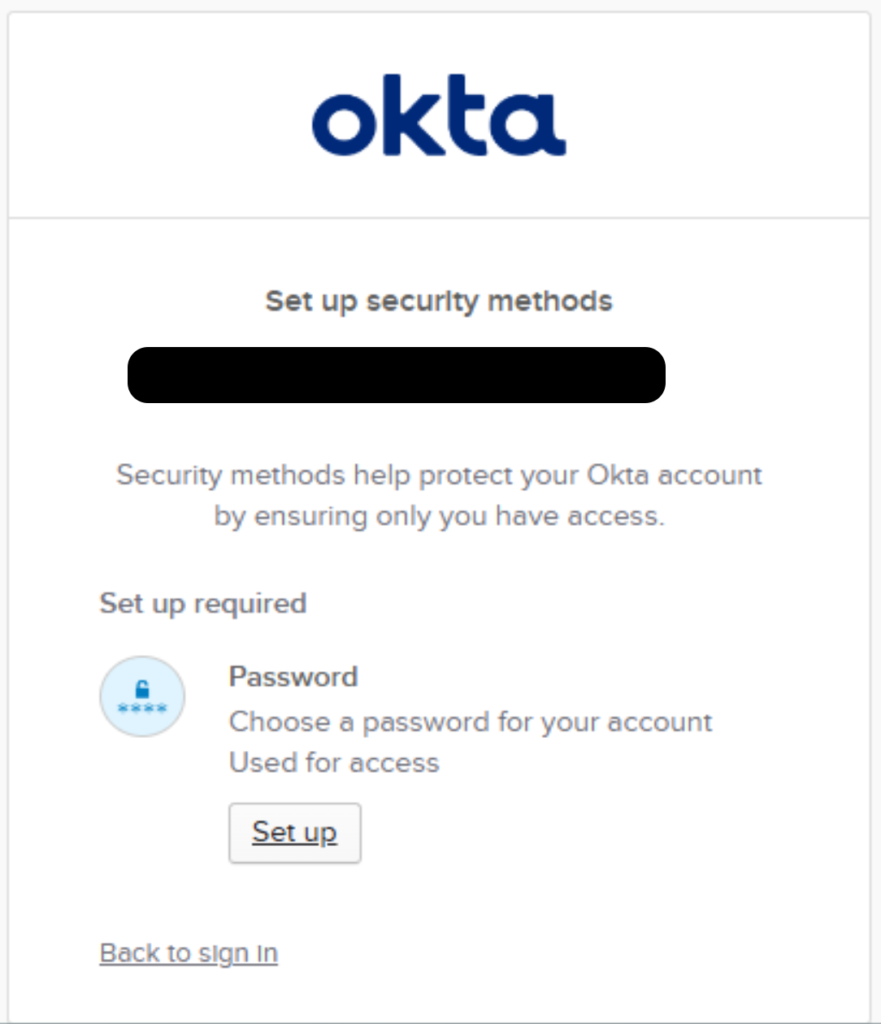
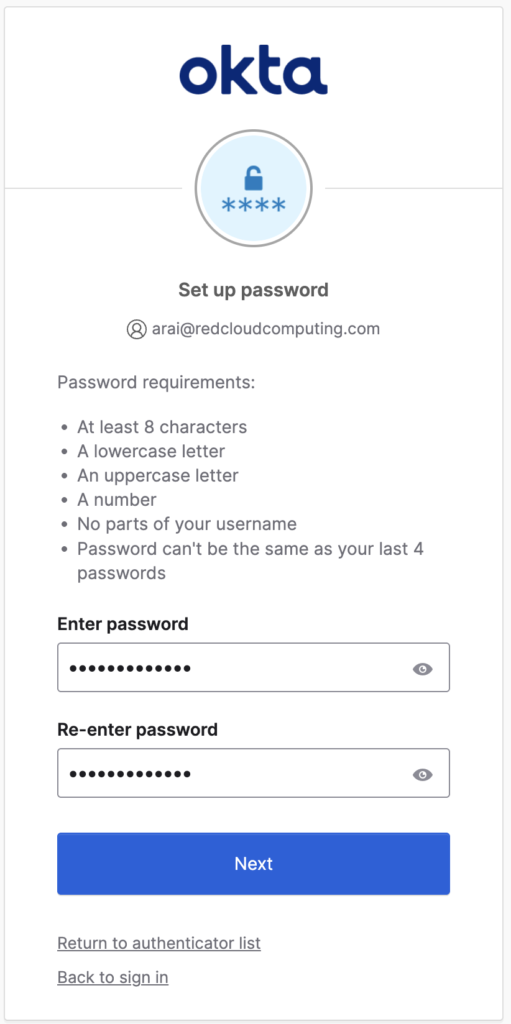
Step 5: Set your password and click Next to complete the setup.
Step 6: Click Admin
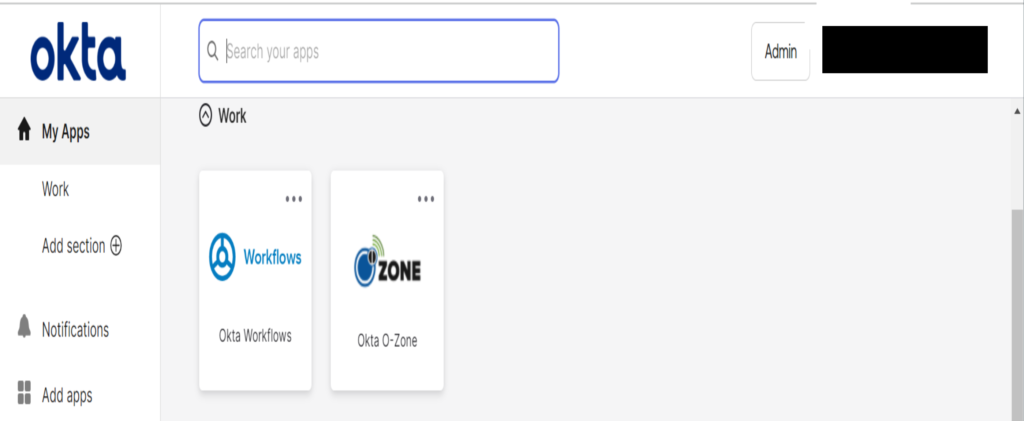
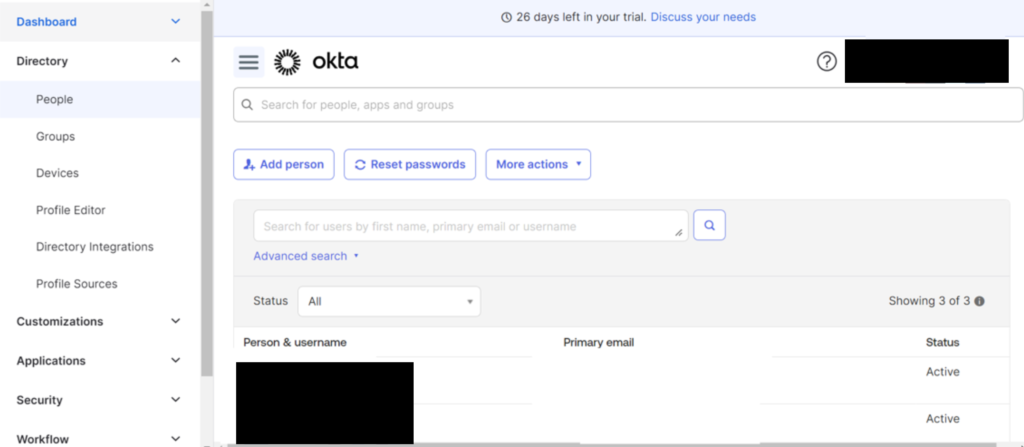
Step 7: Click on the Directory > People then you can view the Usersname and Password. Optionally, you can also add new user.
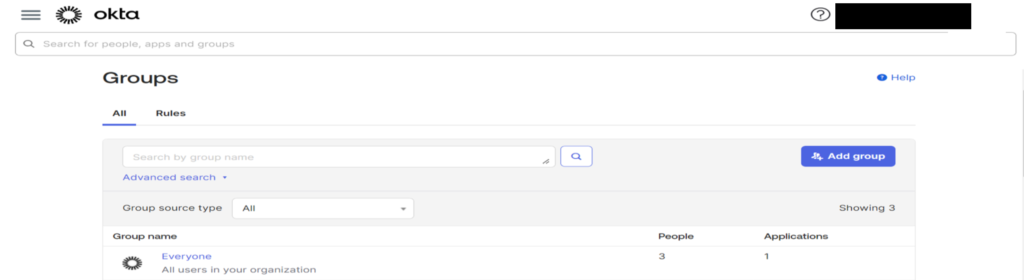
Step 8: Click on the Directory tab > Groups tab > Add Group button > Name = Oracle APEX > Save button
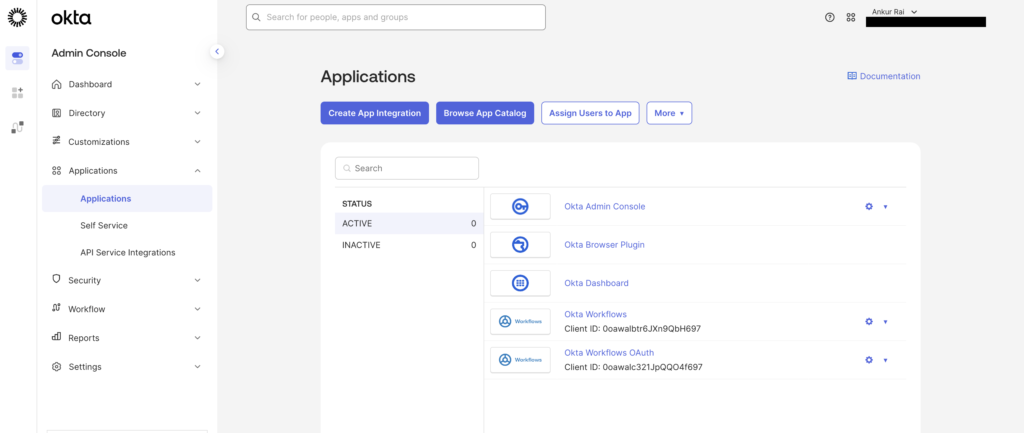
Step 9: Now we need to Create An Application. Click on Create App Integration button
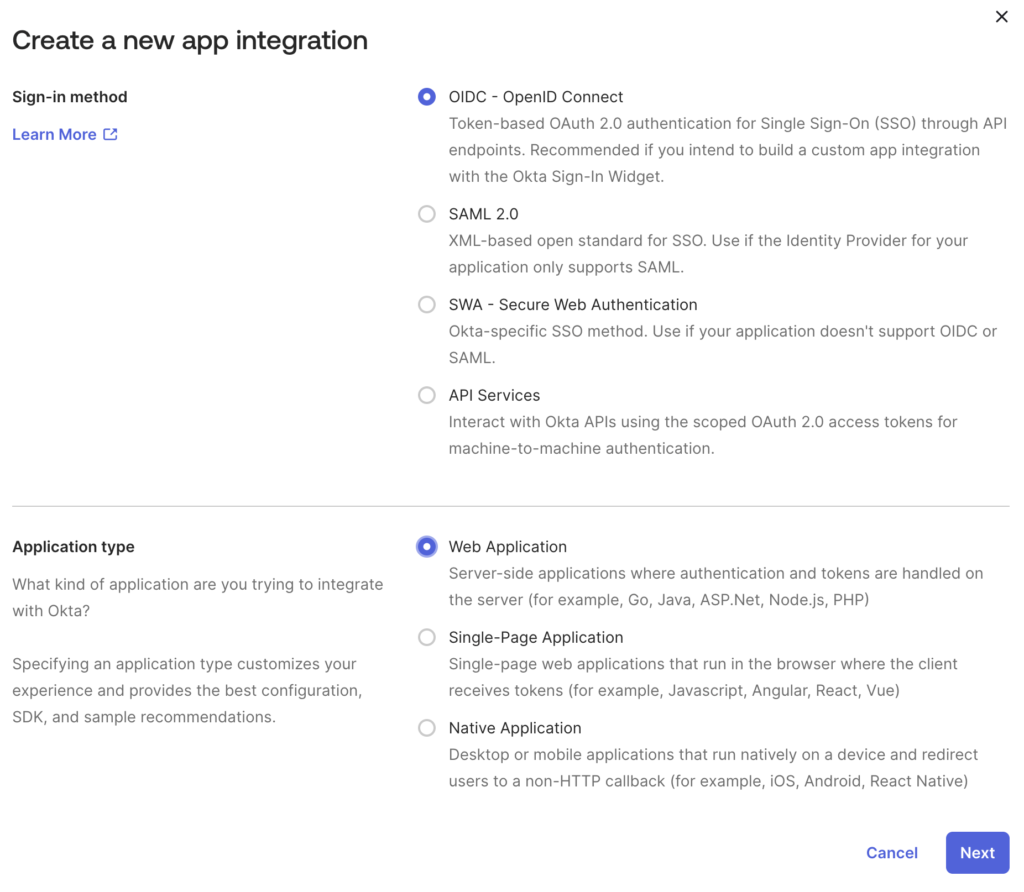
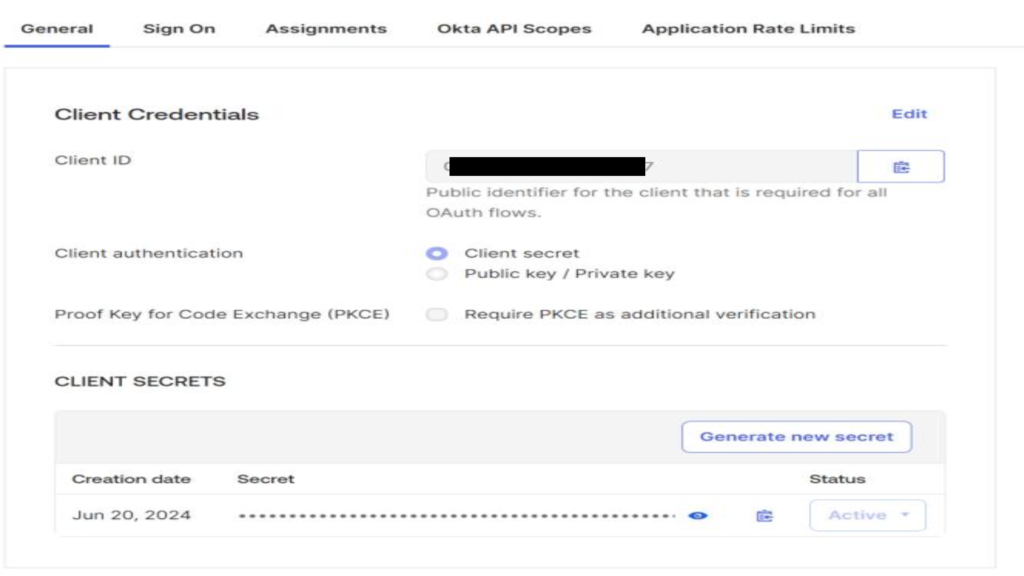
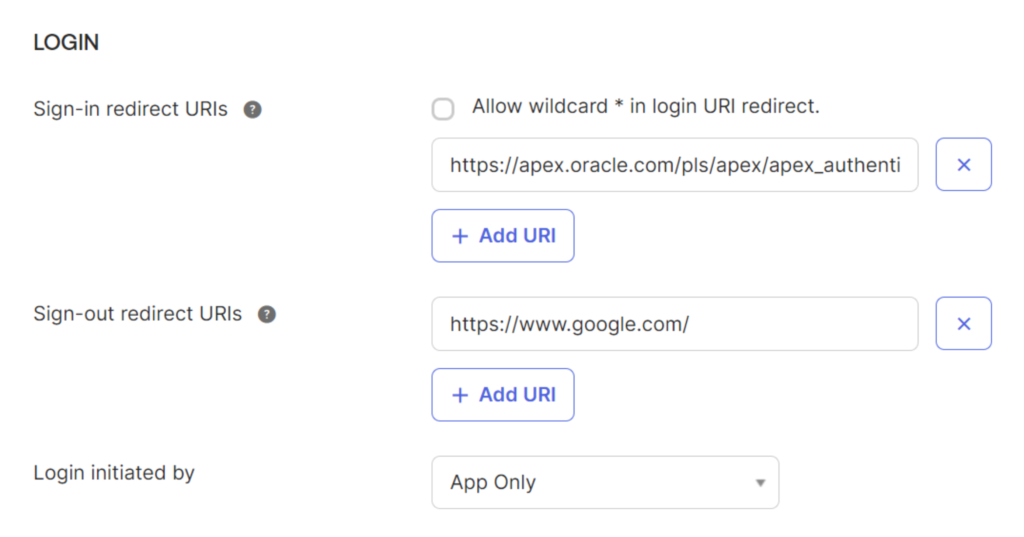
Step 10: Provide Sign-in and Sign-Out URL’s on Login Section and do save the changes.
Step 11: Now go to Work Space Utilities > Web Credentials and then Create Web Credentials as below screenshot.
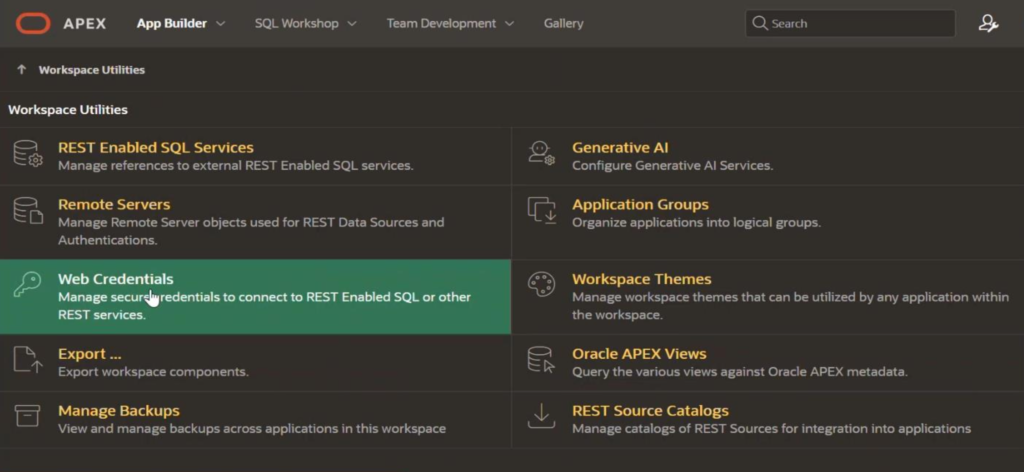
Step 12: After that on web credential page give Name, Static ID, Authentication Type, Oauth Scope ,Client ID and Client Secret
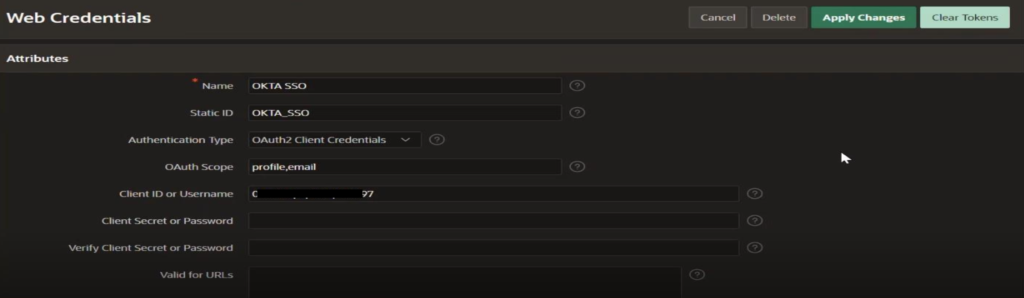
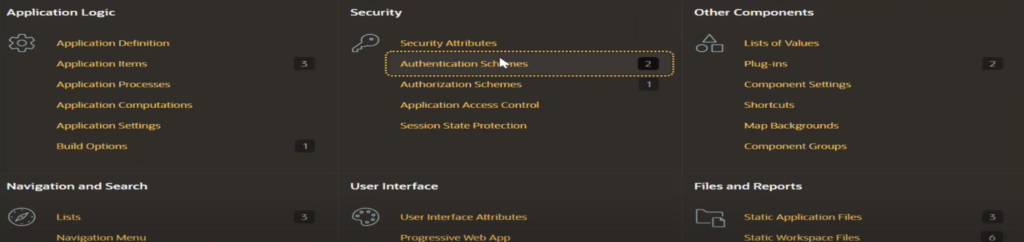
Step 13: Then go to your Application Shared Components

Step 14: Now Select Authentication Scheme
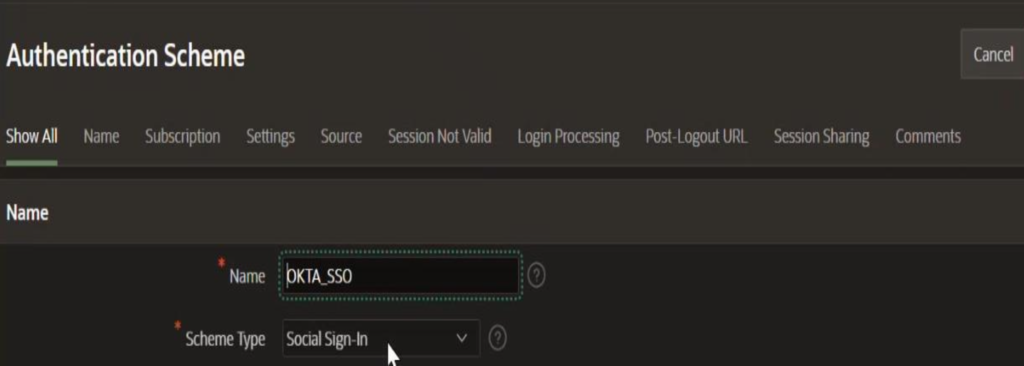
Step 15: Create new Authentication Scheme. Give the Name and Select Scheme Type as “Social Sign-In”
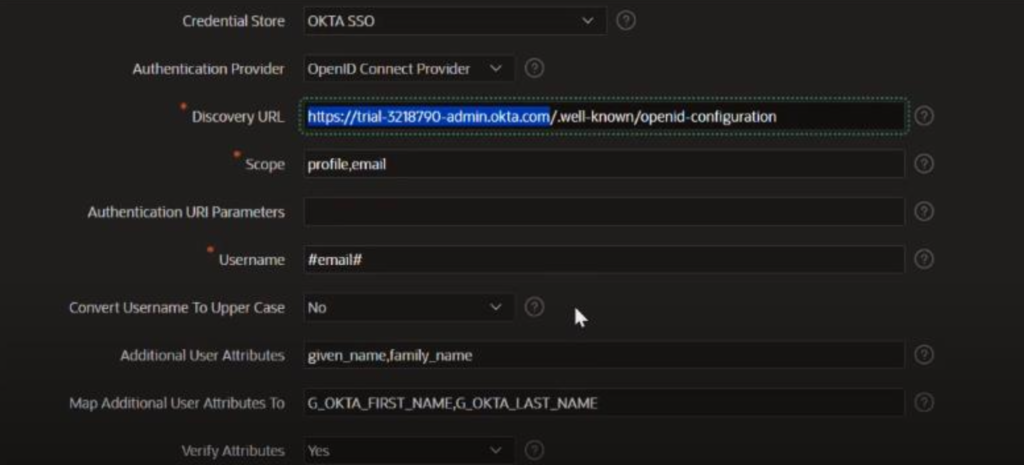
Step 16: Now open your Application login url in browser.
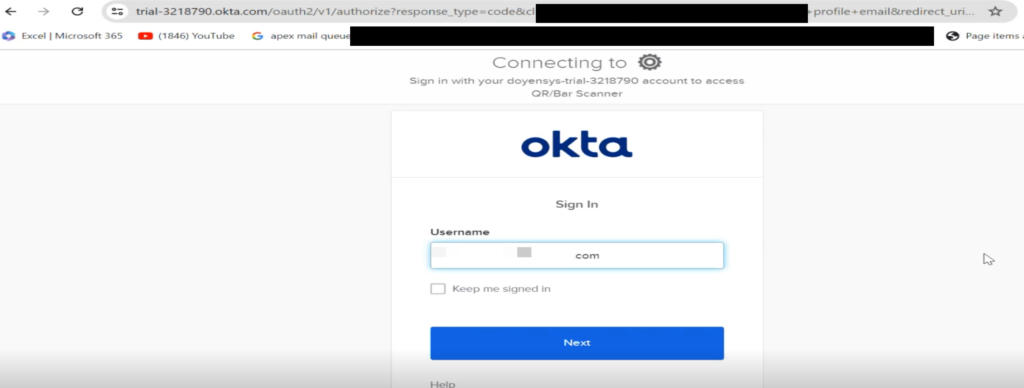
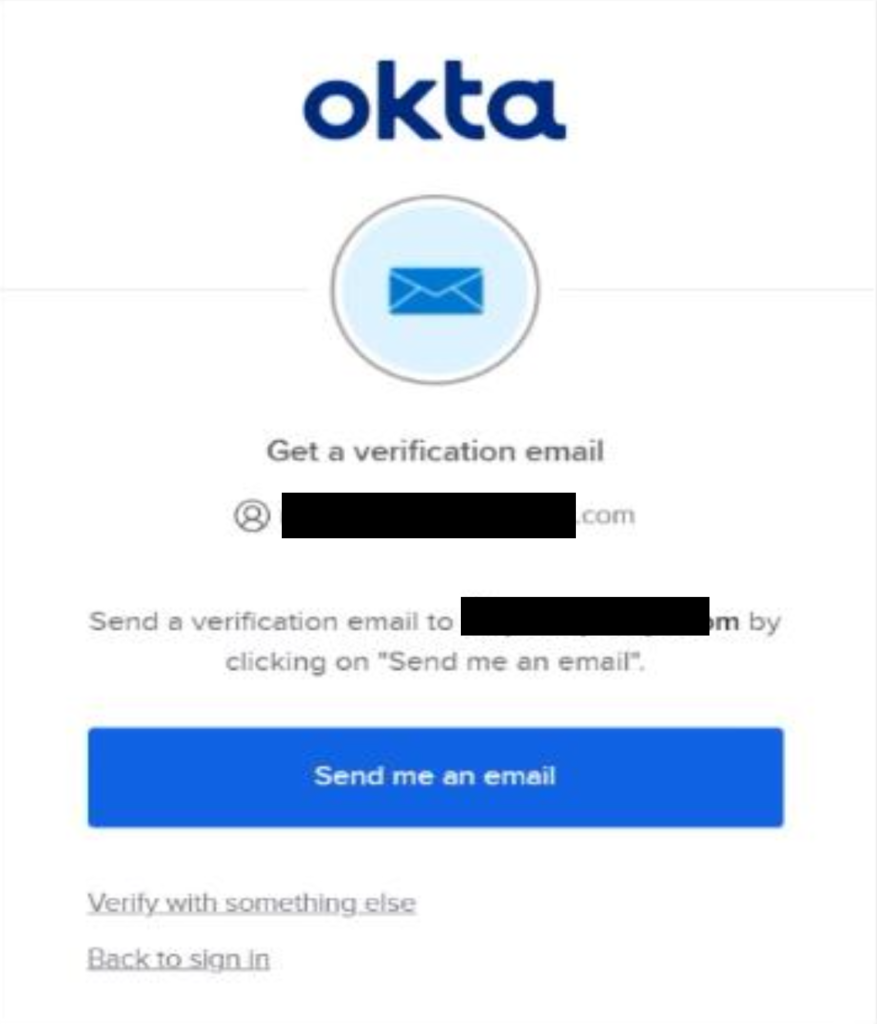
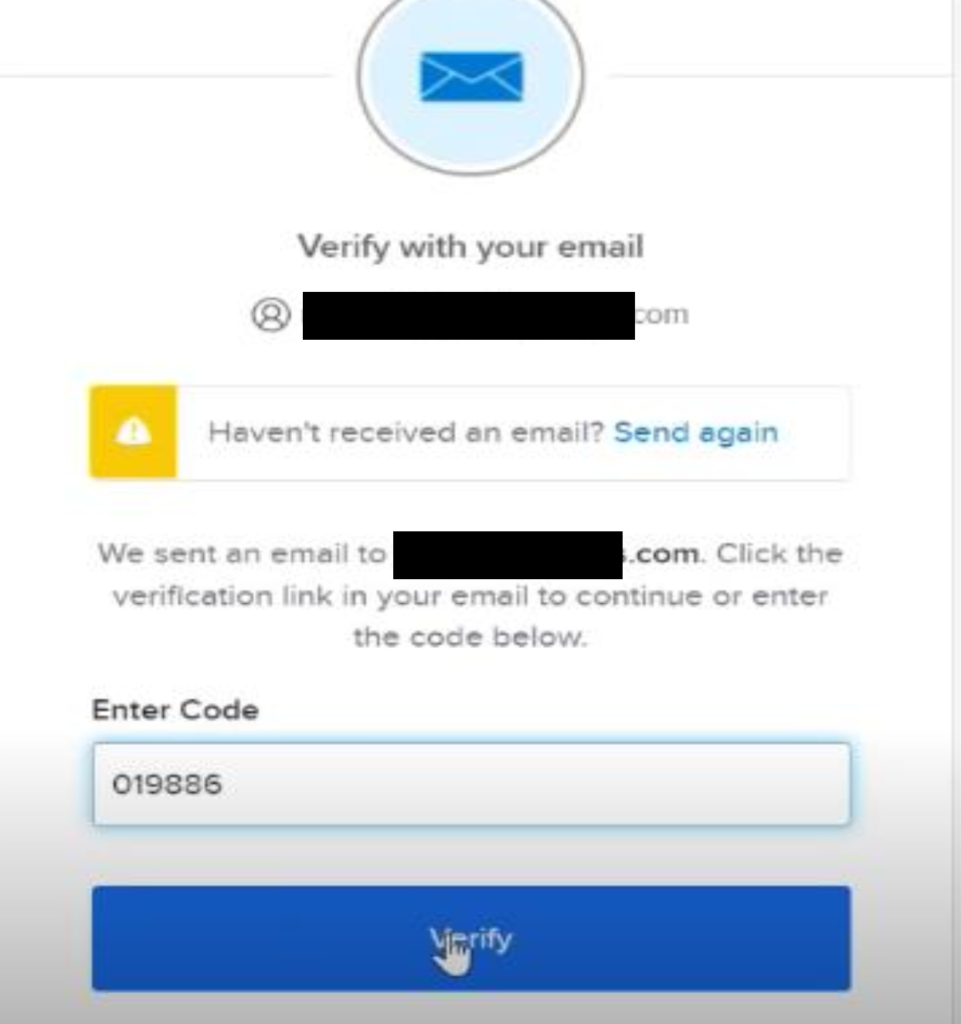
Step 17: Complete verification by clicking on “Send me an mail” button.
5. Output
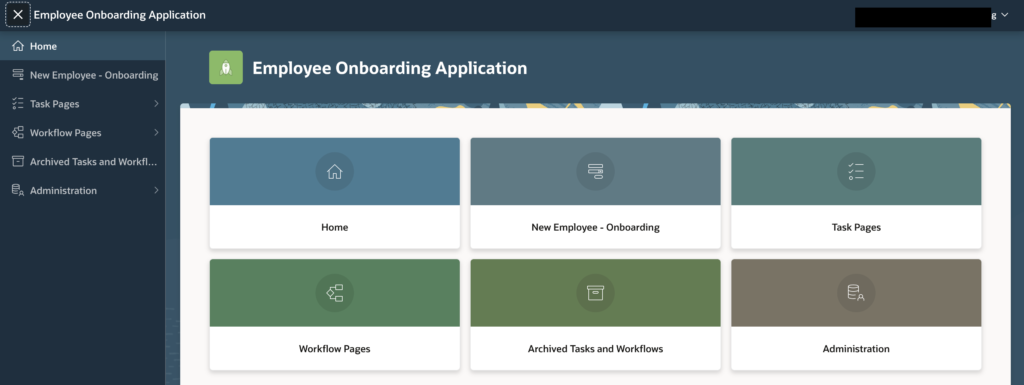
Following the above steps, you can easily configure OKTA Single Sing-On Authentication in Oracle APEX.
Thanks for reading! We hope this guide helped you implement OKTA Single Sing-On Authentication in Oracle APEX in Oracle APEX.
Love coding? Me too! Let’s keep in touch – subscribe to my website for regular chats on Oracle APEX, PL/SQL,SQL JavaScript, and CSS.